Setup
Supported devices
iOS Simulator
Android Emulator
Real device
Web browser
iOS Simulator
On the iOS Simulator, Mimicry configures the proxy and installs the certificate for you automatically.
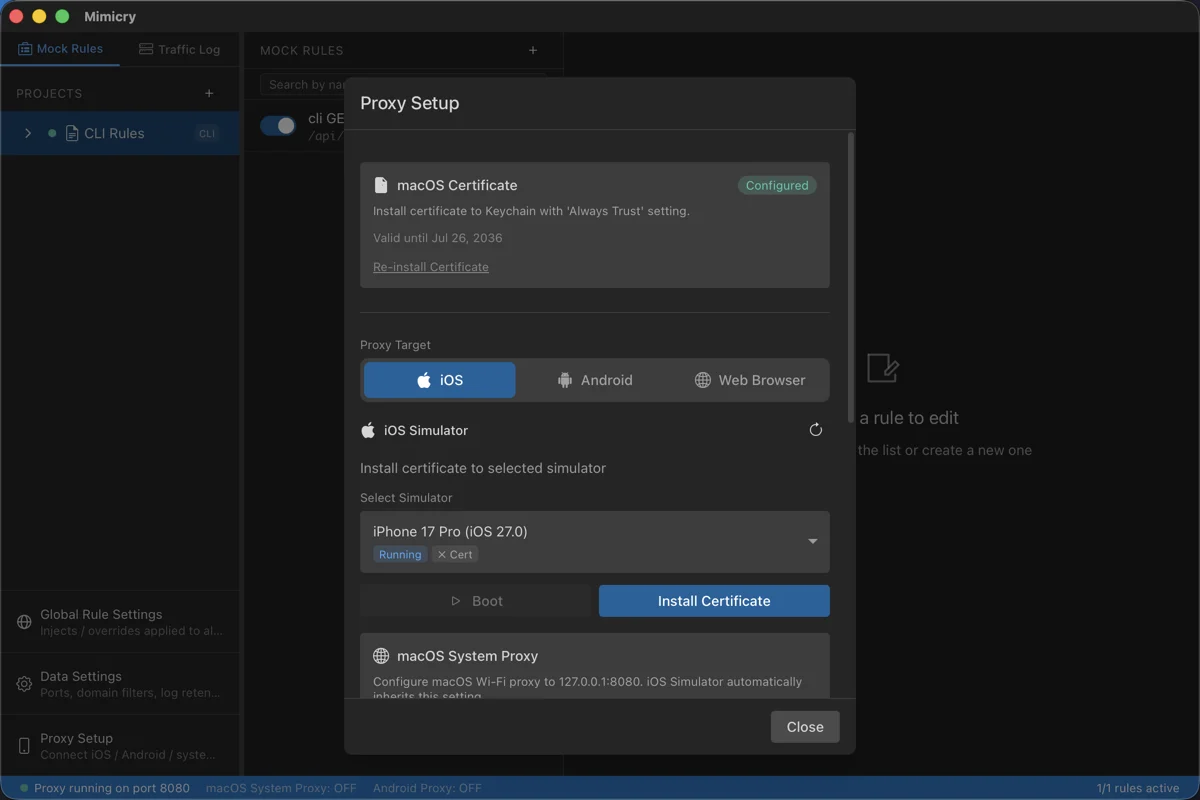
Launch Mimicry and click Device Setup at the bottom of the sidebar.
Select iOS.
Click the Install Certificate button. The certificate is installed on the iOS Simulator and the proxy is configured automatically.
Run your app and its traffic appears in Mimicry's Traffic Log.
Note: You don't need to reinstall the certificate after restarting the iOS Simulator. The proxy settings are applied automatically on restart.
Scope: The iOS Simulator shares the Mac's network, so this setting turns on the macOS system proxy. Traffic from every app on the Mac, browsers included, goes through Mimicry. The original settings are restored when you quit Mimicry.
Android Emulator
Here's how to set things up when using the Android Emulator.
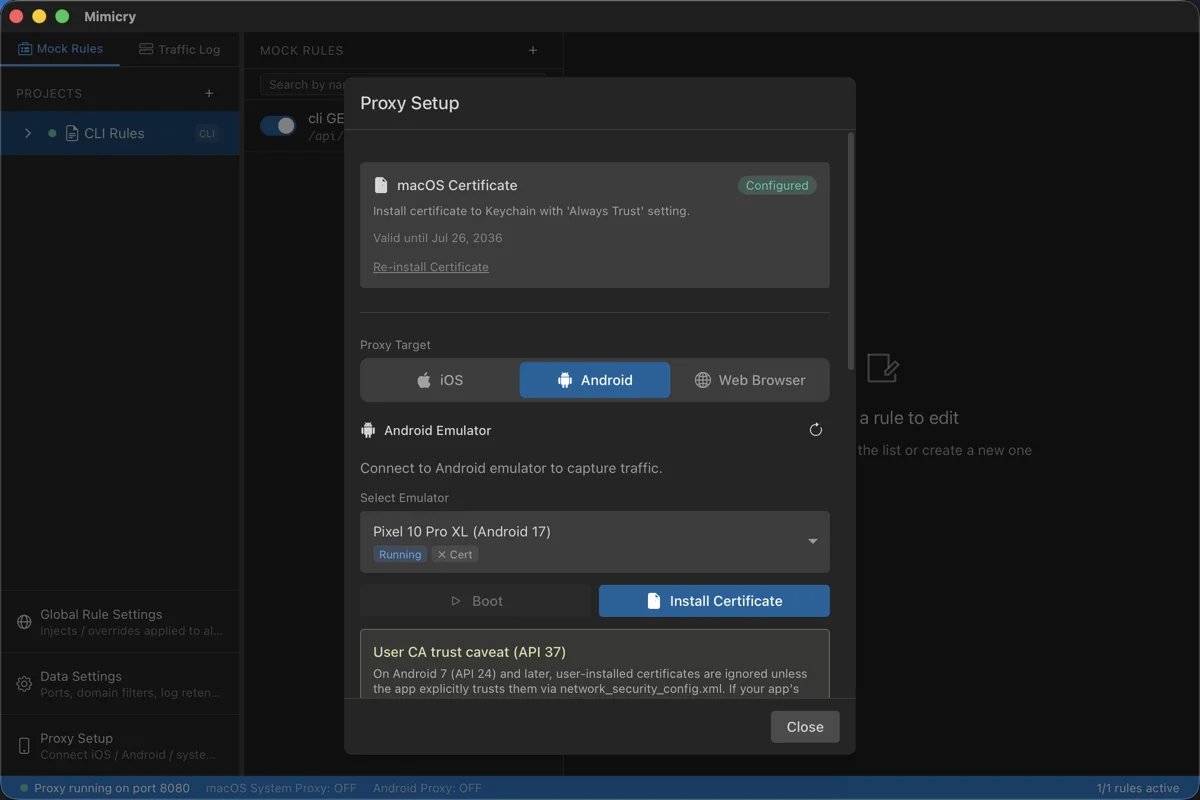
Set the SDK path (only if needed)
The Android SDK Path defaults to ~/Library/Android/sdk. Change it with the steps below only if you installed it elsewhere.
Open App Settings in the sidebar.
Set the SDK path in Android SDK Path.
Install the certificate
You can install the certificate on an Android Emulator in one of two places. Click Install Certificate and a dialog asks you to choose.
- User certificate store: works on any system image. It needs steps on the emulator.
- System certificate store: works only on Google APIs (no Play Store) images. It needs no app changes and no steps on the emulator. It uses
adb root, so it is not available on Play Store images or real devices. Restarting the emulator undoes it, so you need to apply it again.
Select Android in Device Setup.
Select the target emulator, click Install Certificate, and choose where to install it.
If you choose the user certificate store, the certificate is copied to the Download folder. If no screen lock is set, a temporary PIN (1234) is set. You can remove the temporary PIN from the dialog after the installation.
On API 30 and up, the Settings app opens; follow the steps it shows to install the certificate. The steps are the same as step 3 for the Android real device. Below API 30, the Files app opens; tap mimicry-ca-cert.cer.
If you chose the system certificate store, there is nothing to do on the emulator.
Run your app from Android Studio.
Note: By default, apps targeting Android 7 and later do not trust user certificates. When you use the user certificate store, add <certificates src="user"/> to the app's network_security_config.xml.
Physical iOS device
To use a physical iOS device, set it up in the following 4 steps. Connect your Mac and iPhone to the same Wi-Fi network before you start.
1Configure the proxy
Configure the Wi-Fi proxy manually from the Settings app on your iPhone.
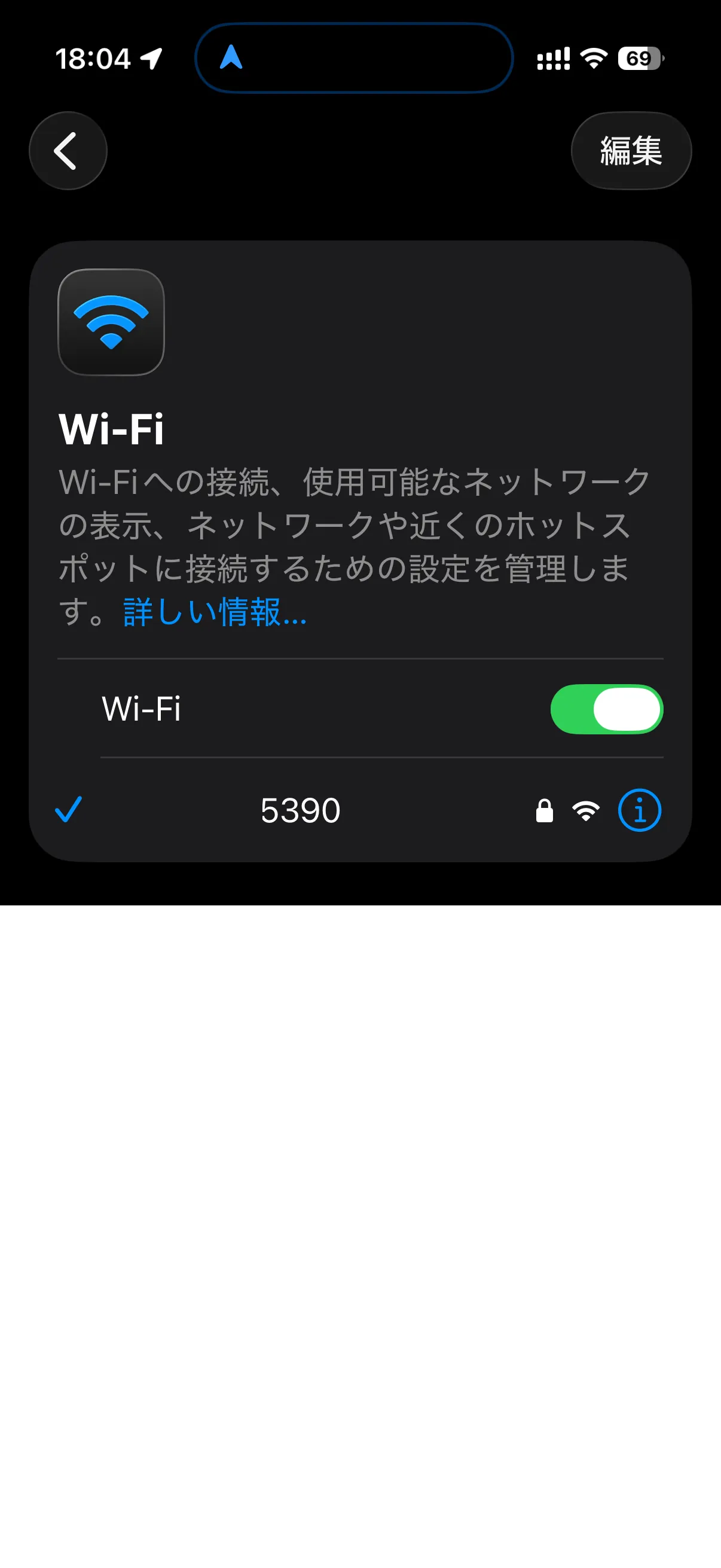
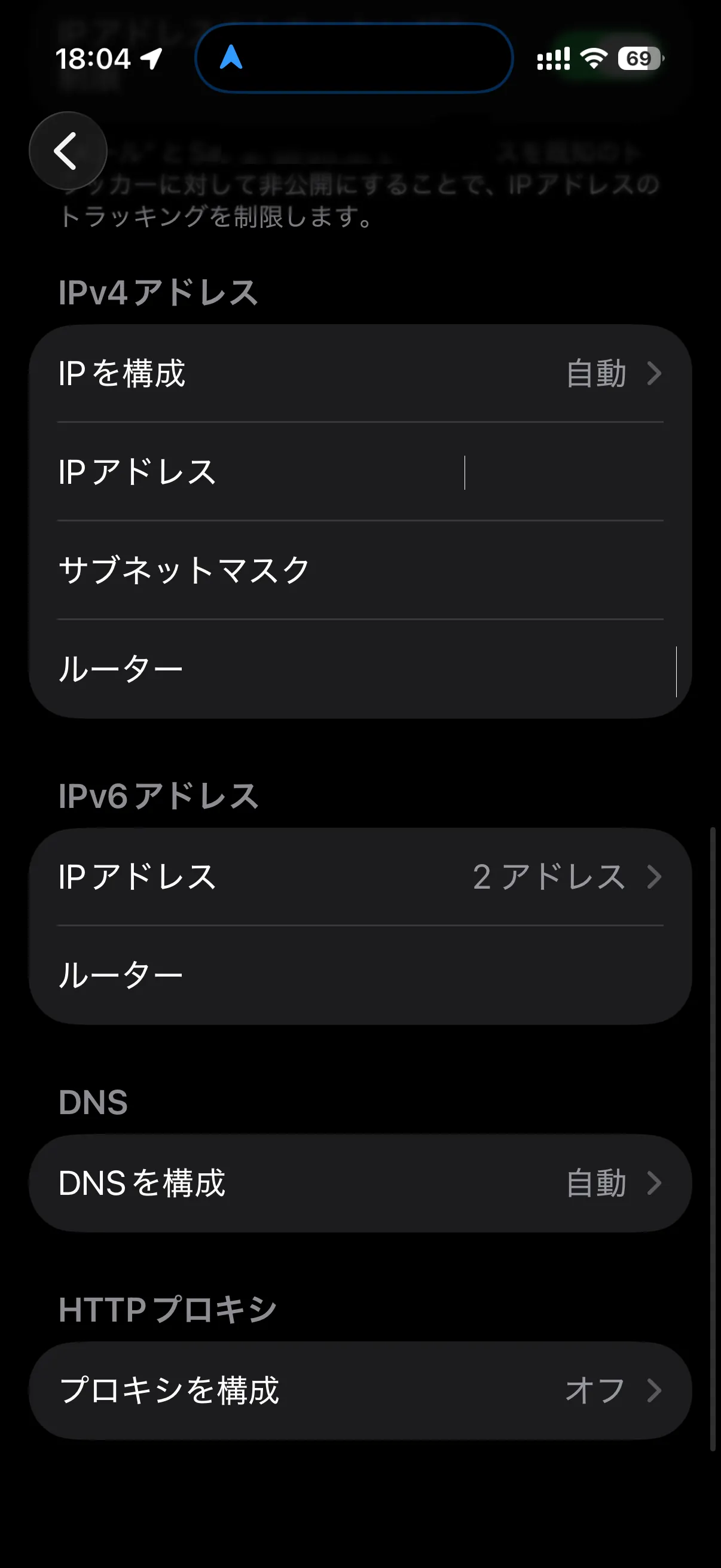
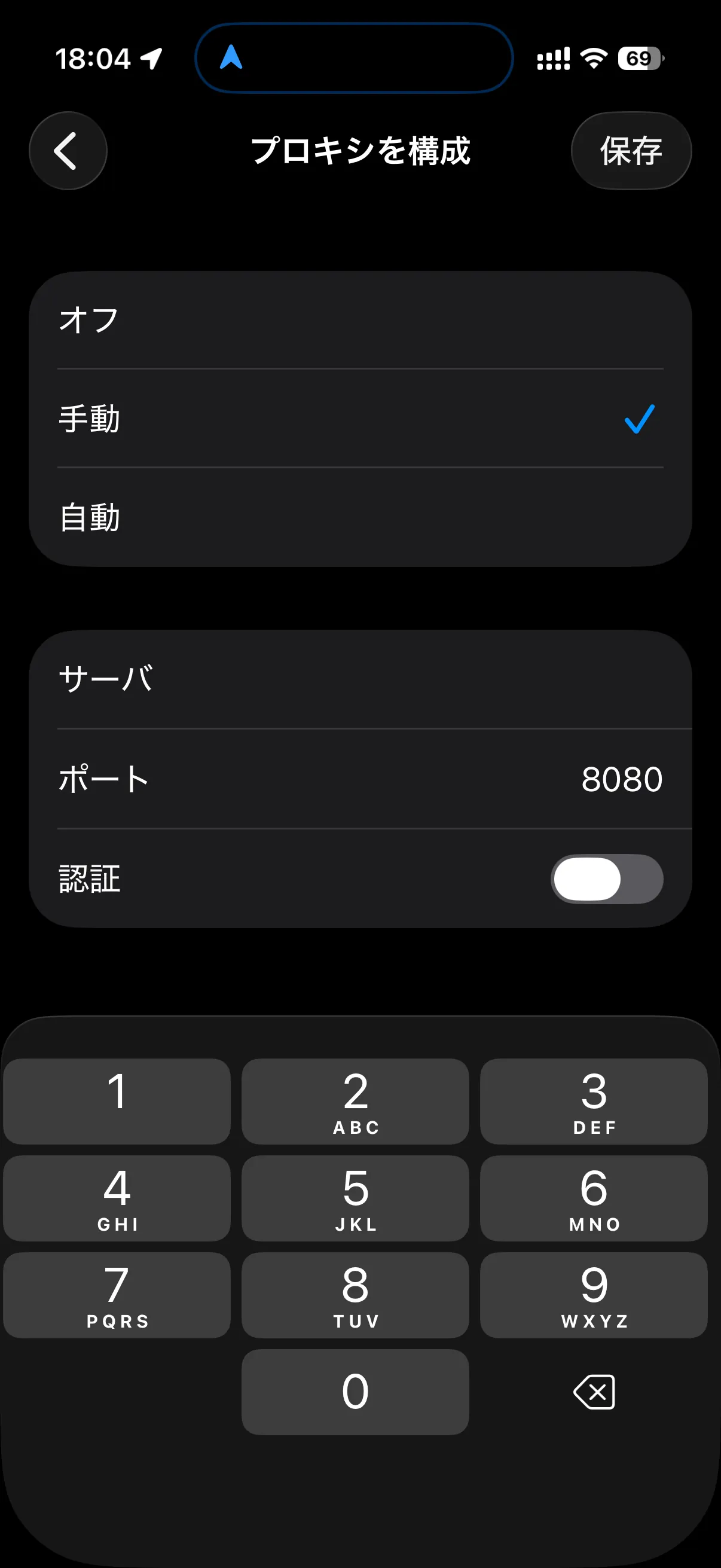
Settings > Wi-Fi > the connected network (i) > Configure Proxy > Manual
Server: the IP address shown by Mimicry Port: 8080
2Download the certificate
After configuring the proxy, scan the QR code in Mimicry to open the page in Safari and download the certificate.
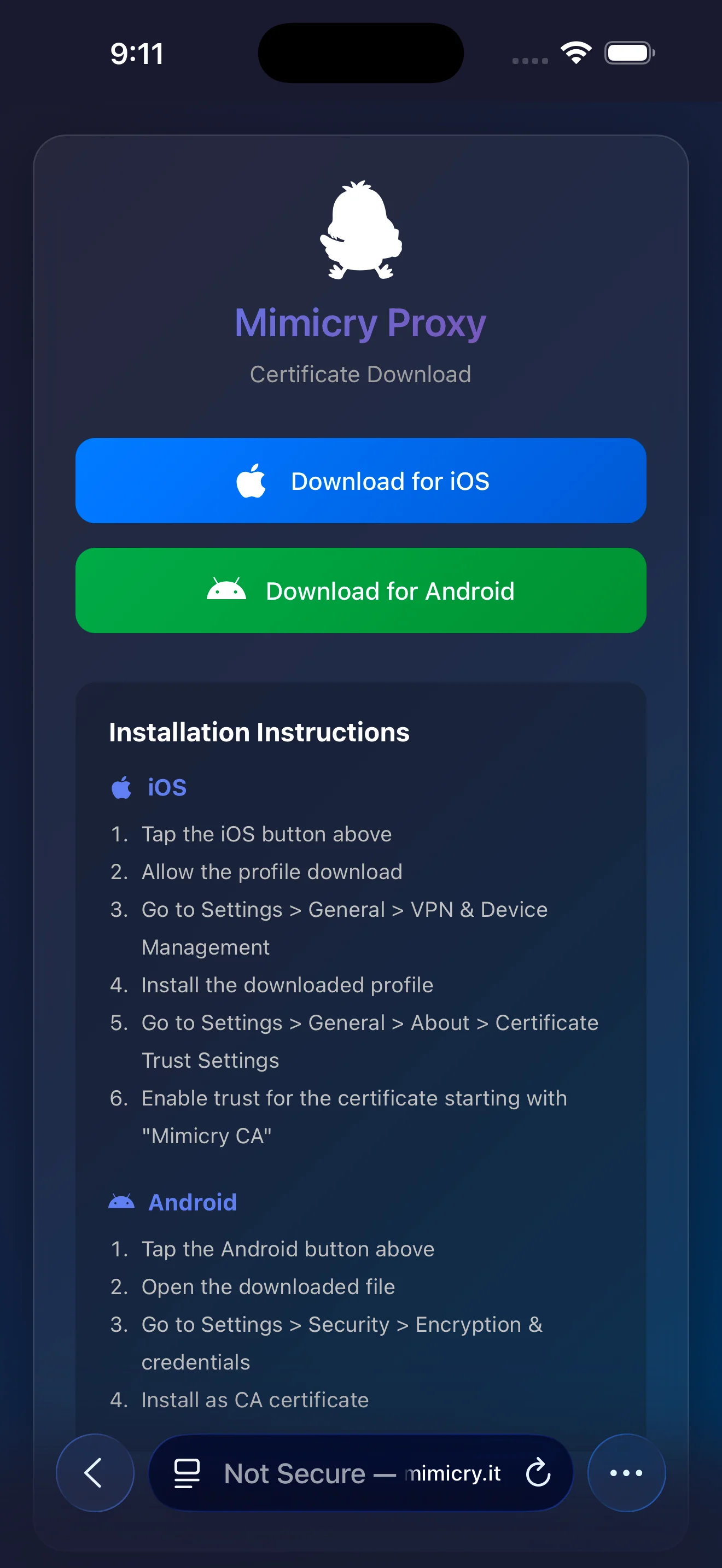
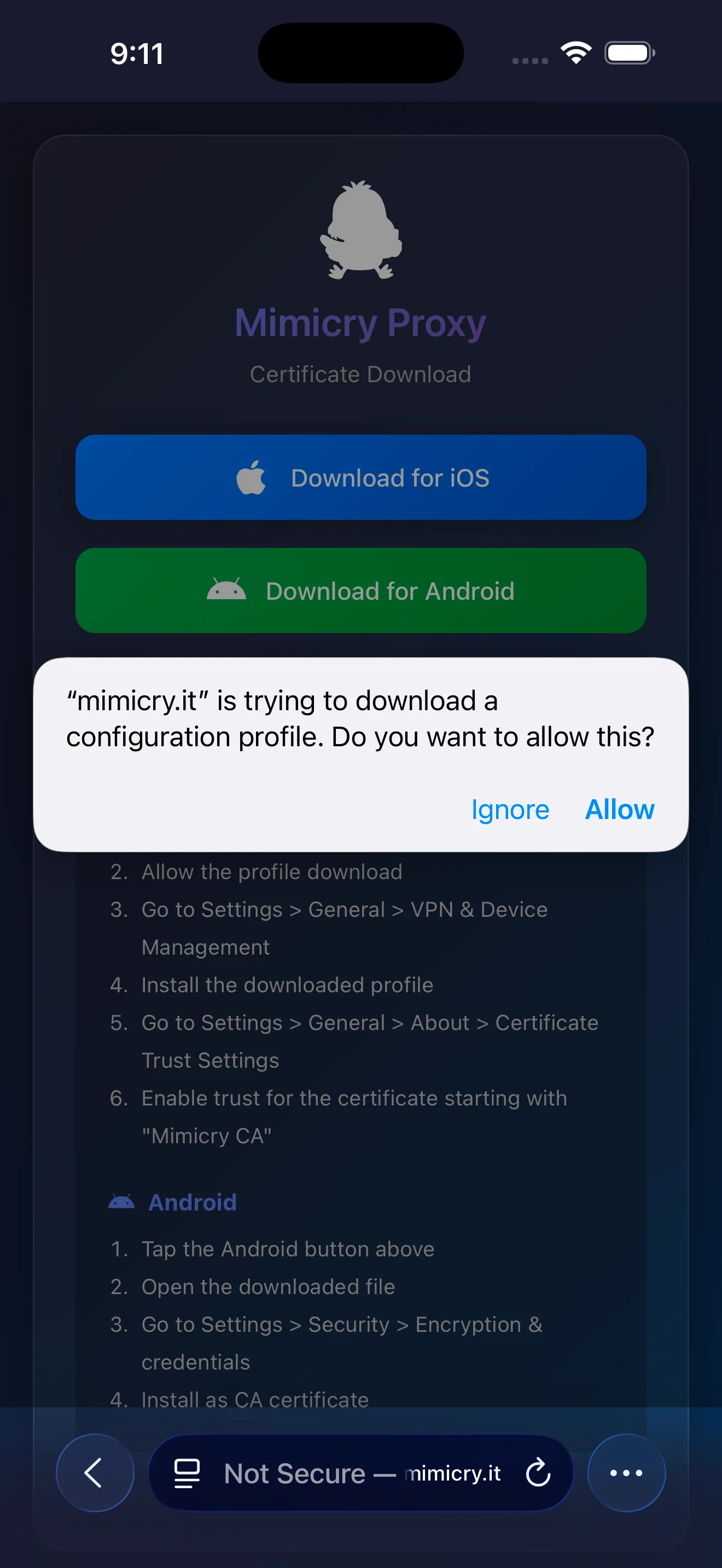
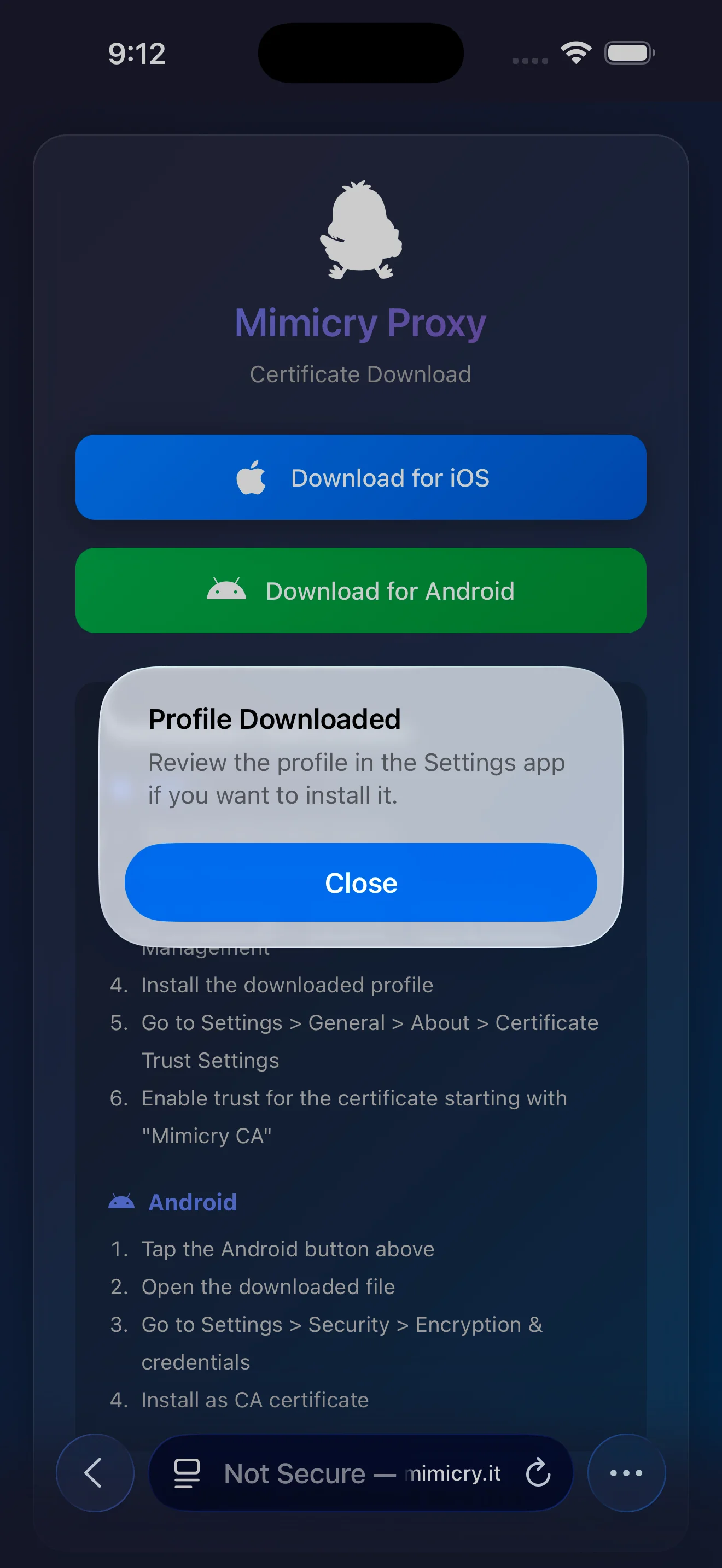
Scan the QR code shown by the Show QR Code button in Device Setup.
3Install the certificate
Install the downloaded profile from the Settings app.
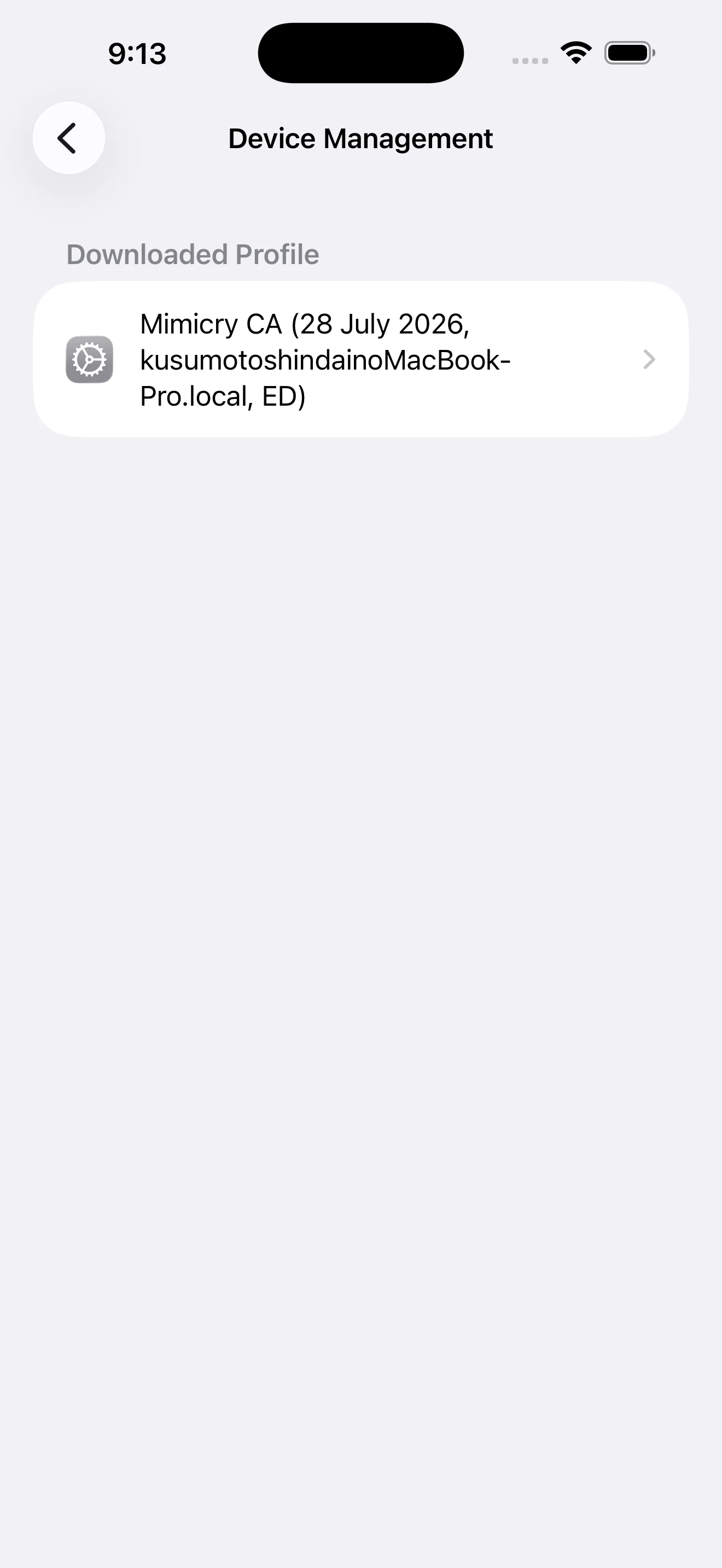
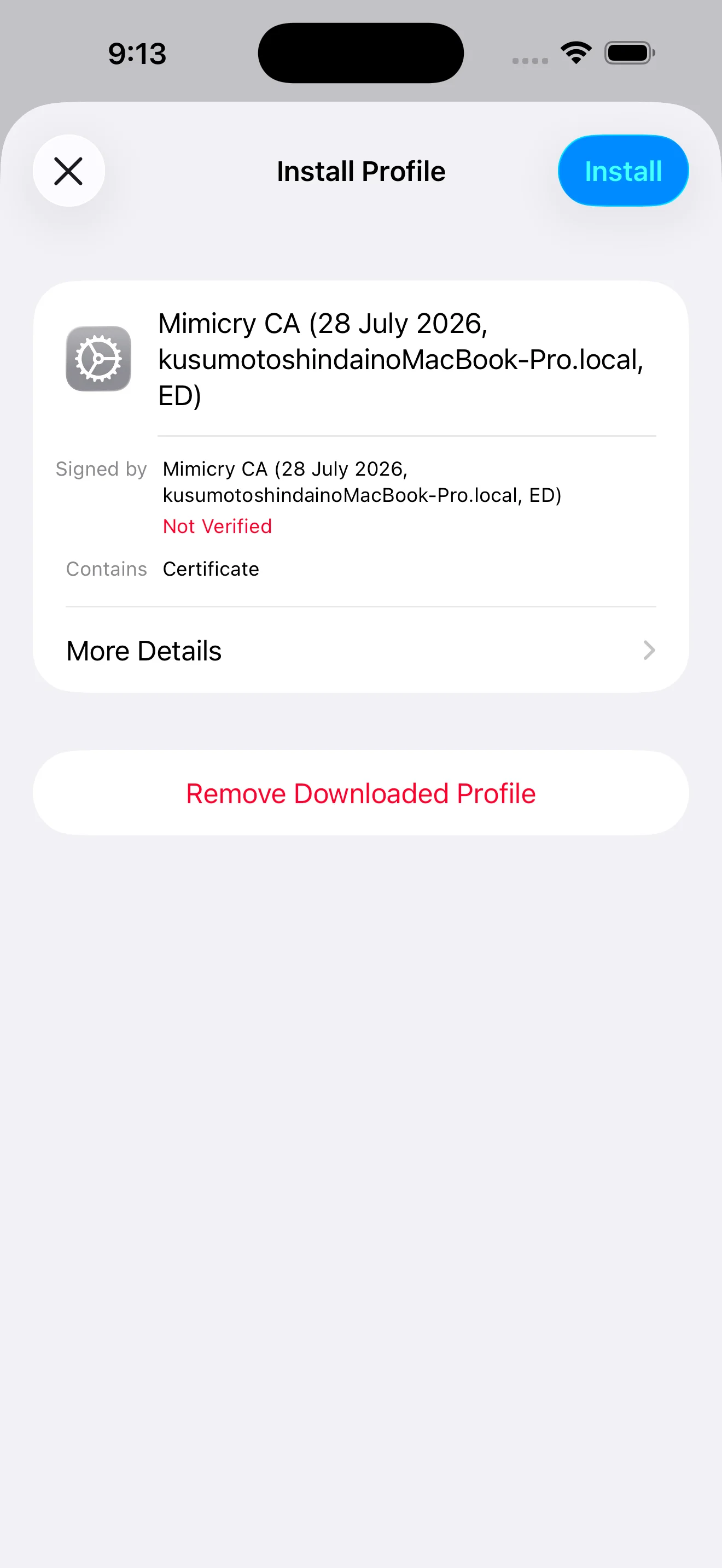
Tap "Install" from Settings > General > VPN & Device Management > Downloaded Profile
4Trust the certificate
To capture HTTPS traffic, you need to enable the trust setting for the certificate.
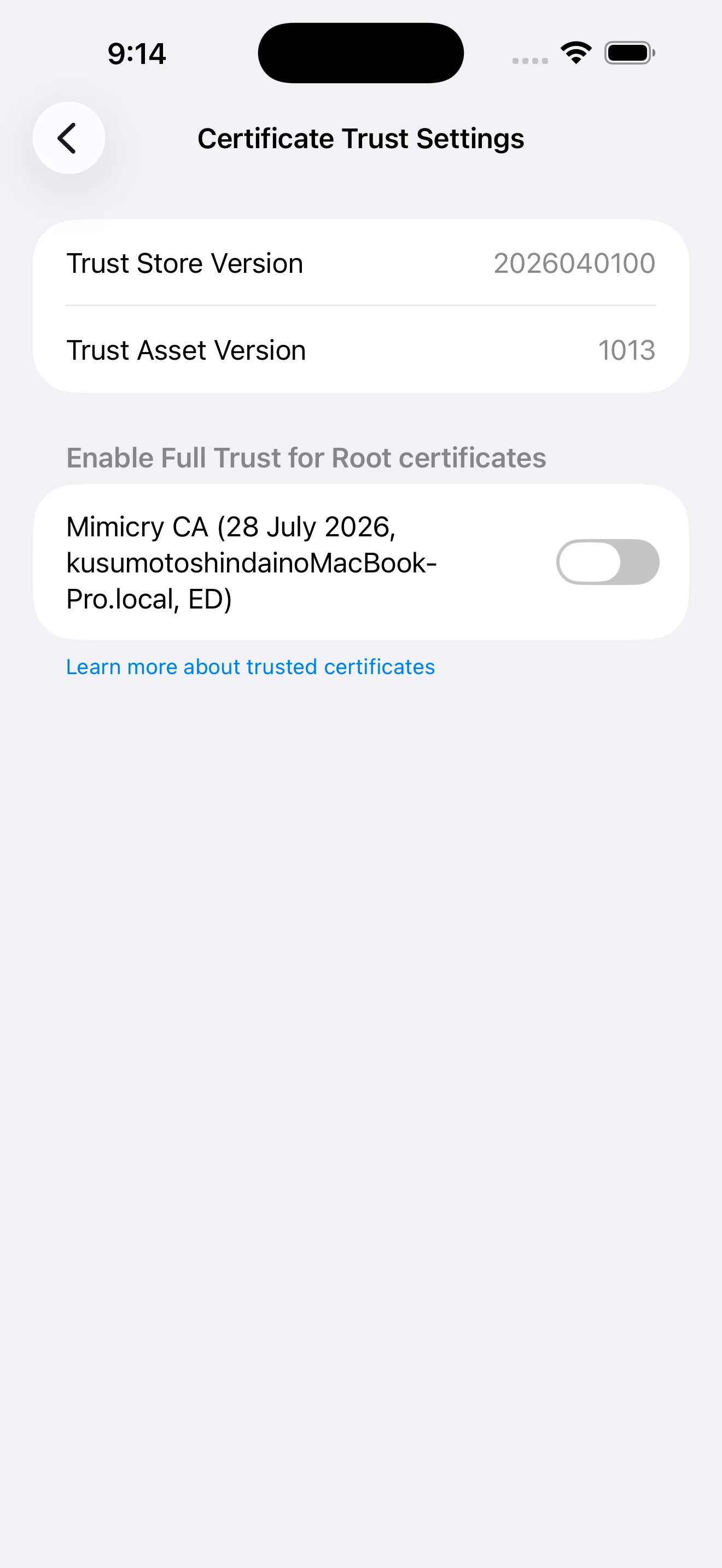
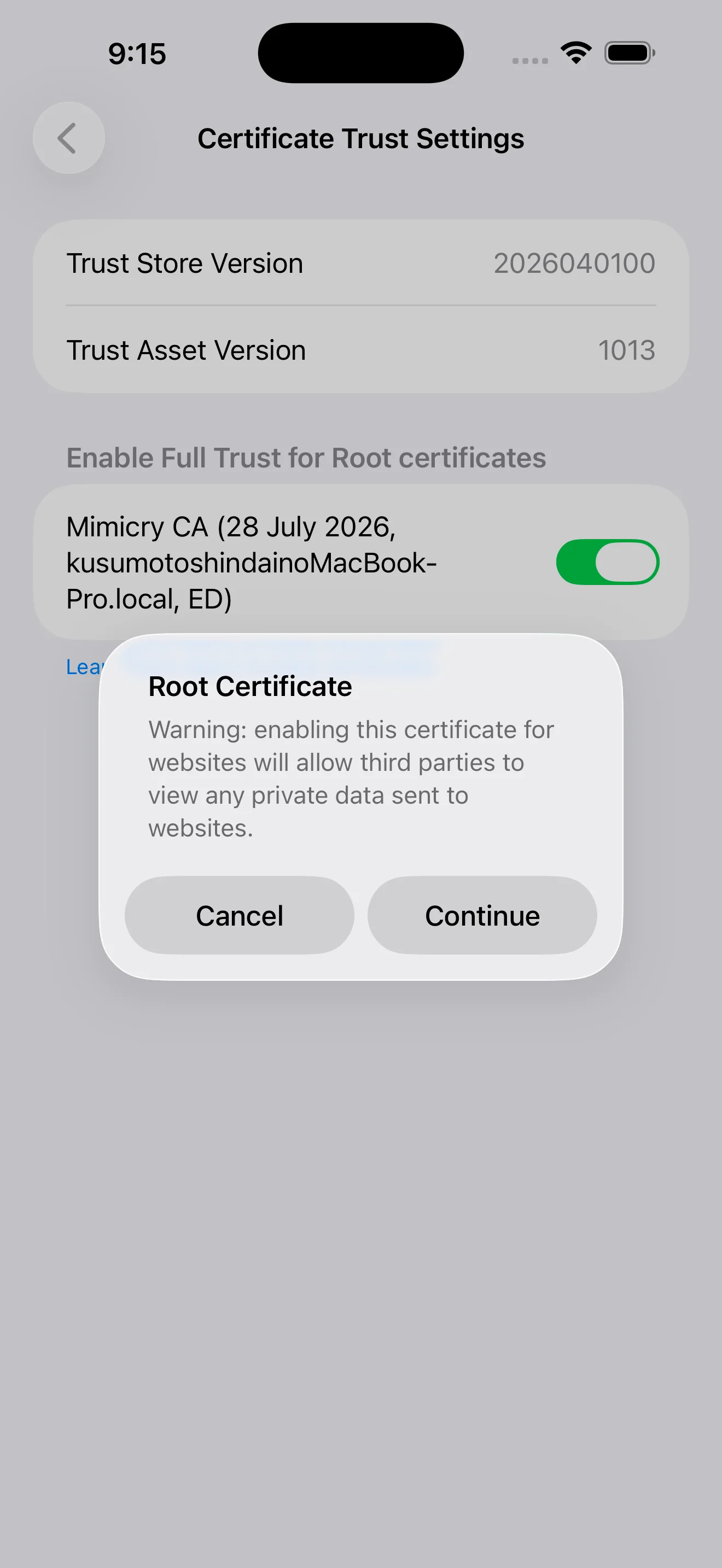
Turn on the switch for the certificate starting with "Mimicry CA" in Settings > General > About > Certificate Trust Settings. This step is required: installing alone leaves HTTPS undecryptable and every request fails with a TLS error.
Sending via AirDrop: Instead of the QR code, you can send a configuration profile (.mobileconfig) that bundles the certificate to the iPhone via AirDrop. Choose "Send profile via AirDrop" on the physical iOS device screen of Device Setup, then install the profile from Profile in the iPhone's Settings app. Installing the profile does not enable trust for the certificate, so step 4 is still required.
Setup complete: Traffic from your physical iOS device is now captured by Mimicry. When you make network requests in Safari or an app, they appear in the traffic log.
Physical Android device
To use a physical Android device, set it up in the following 3 steps. Connect your Mac and Android device to the same Wi-Fi network before you start.
1Configure the proxy
Configure the Wi-Fi proxy manually from the Settings app on Android.
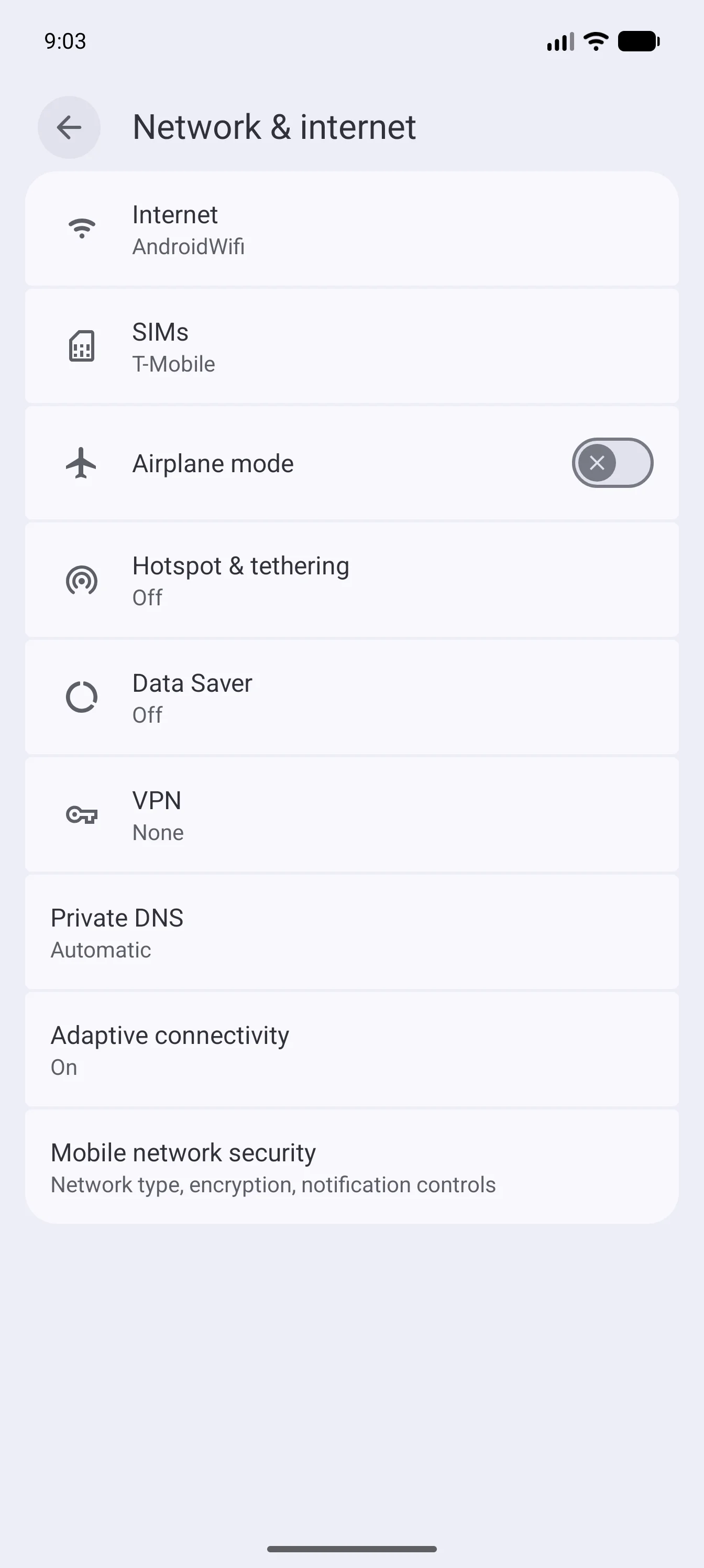
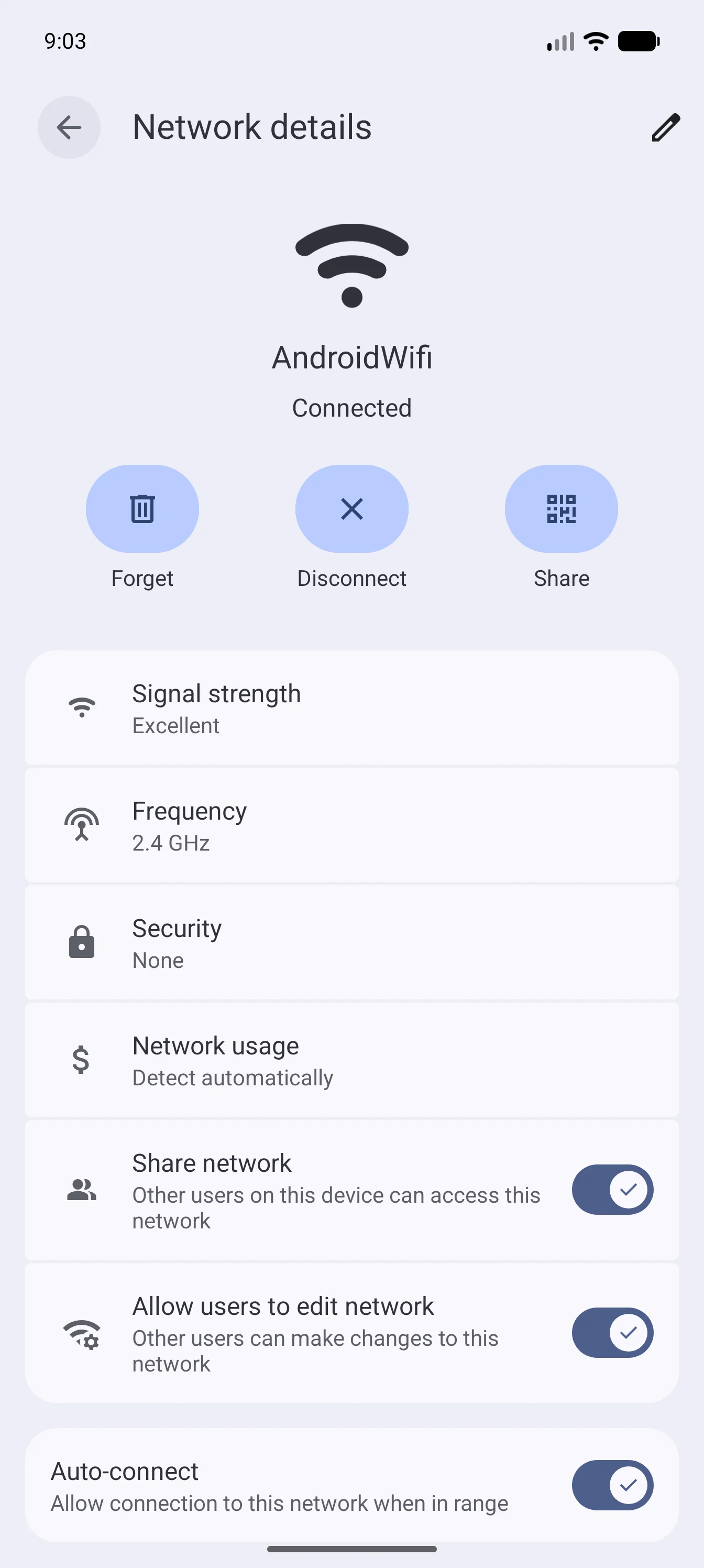
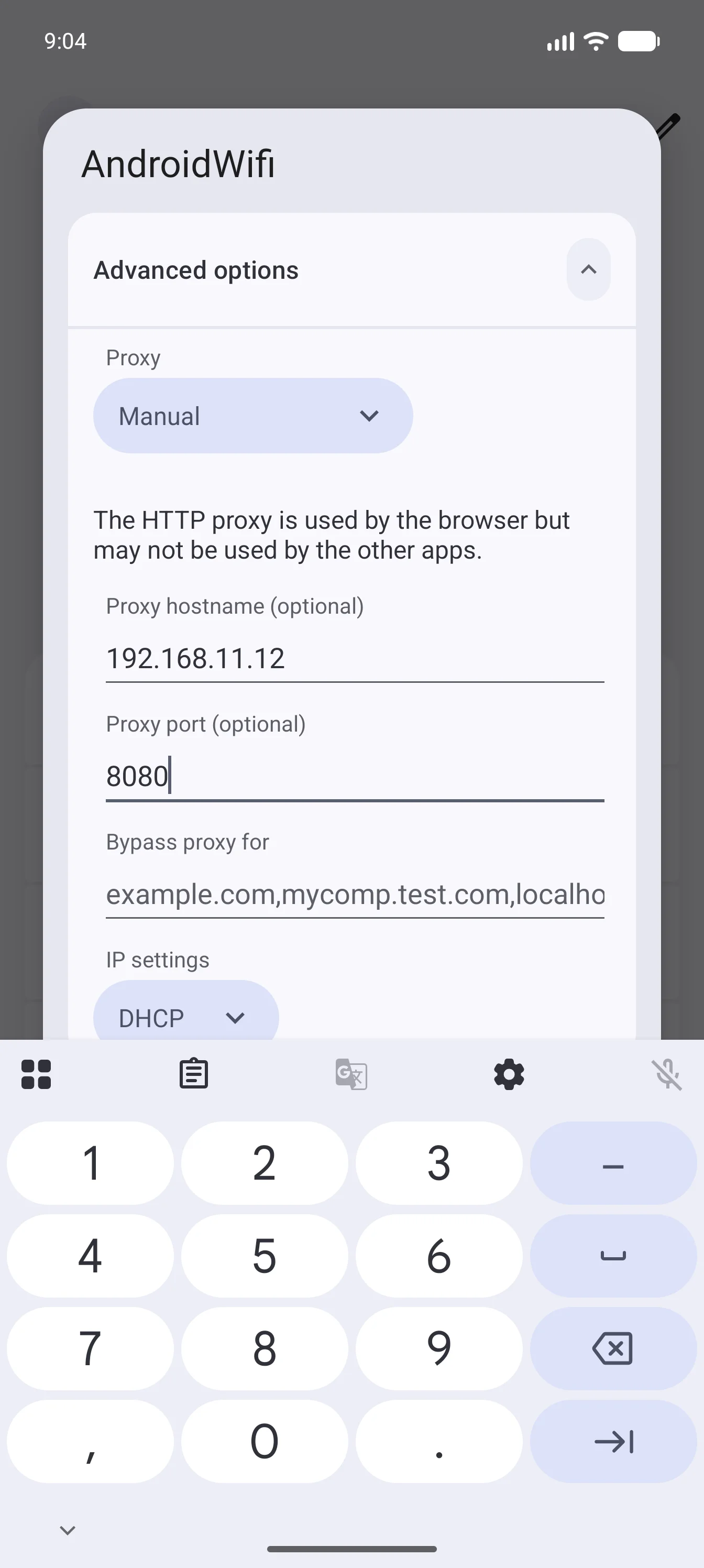
Settings > Network & internet > Internet > settings for the connected network > Proxy > Manual
Host name: the IP address shown by Mimicry Port: 8080
2Download the certificate
After configuring the proxy, open the certificate download page in a browser.
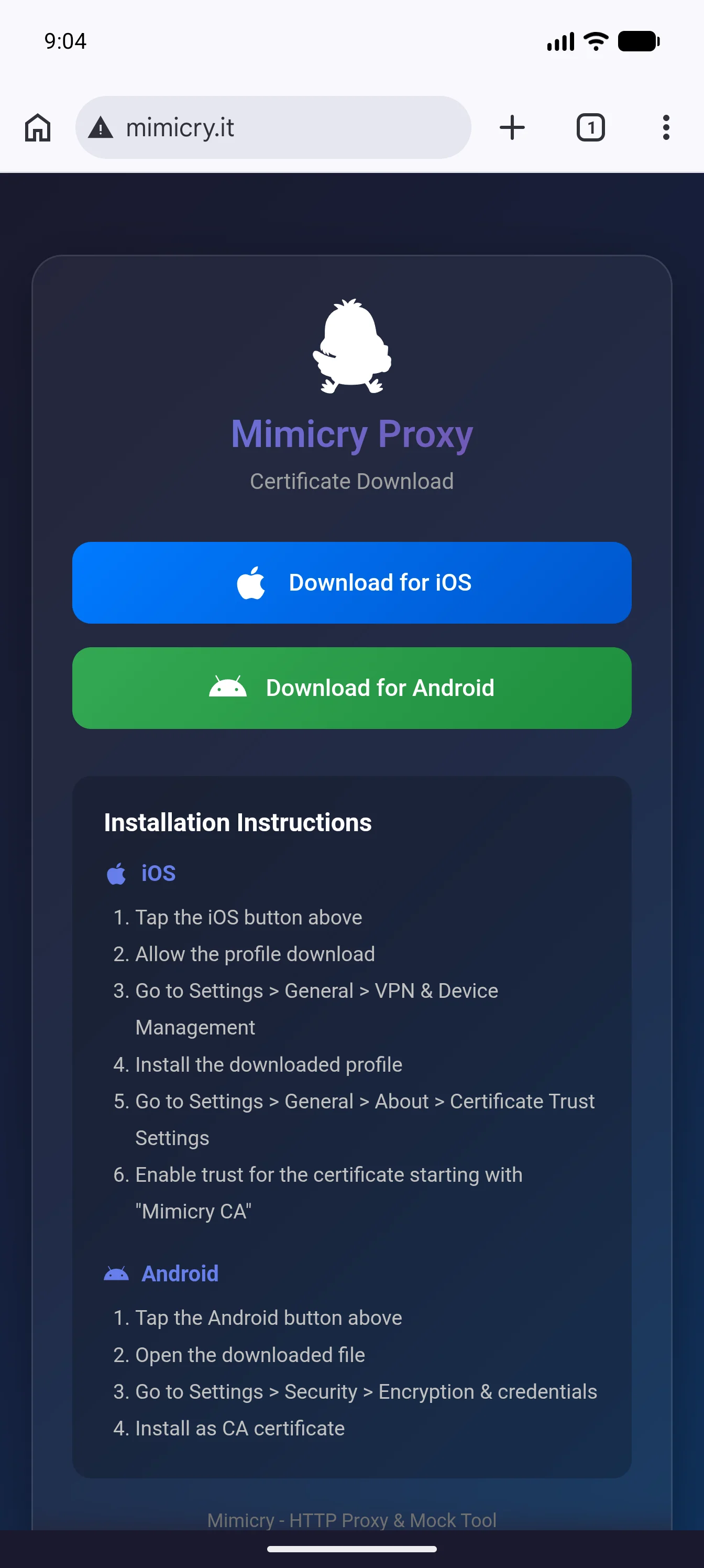
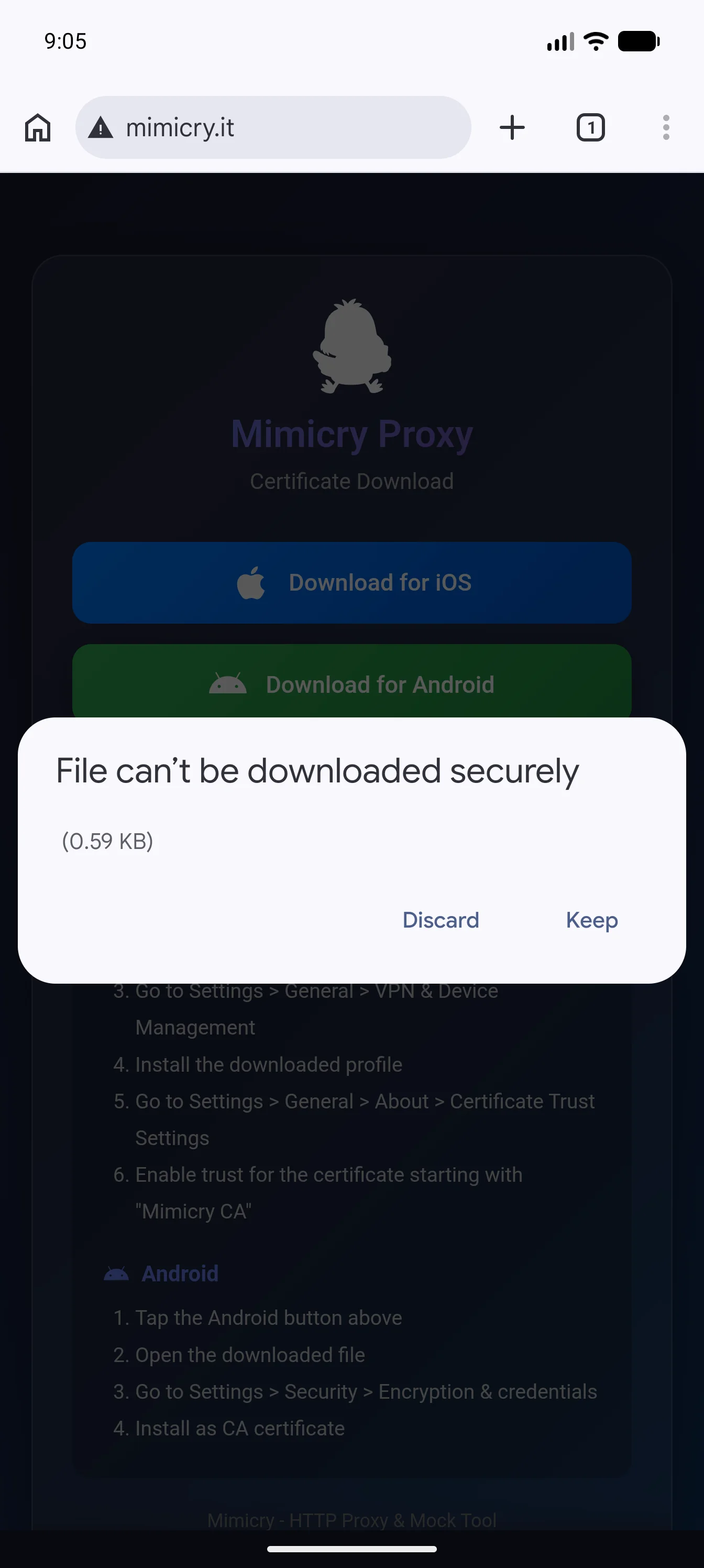
Scan the QR code shown by the Show QR Code button in Device Setup, then tap the "Android" button.
3Install the certificate
Install the downloaded certificate from the Settings app.
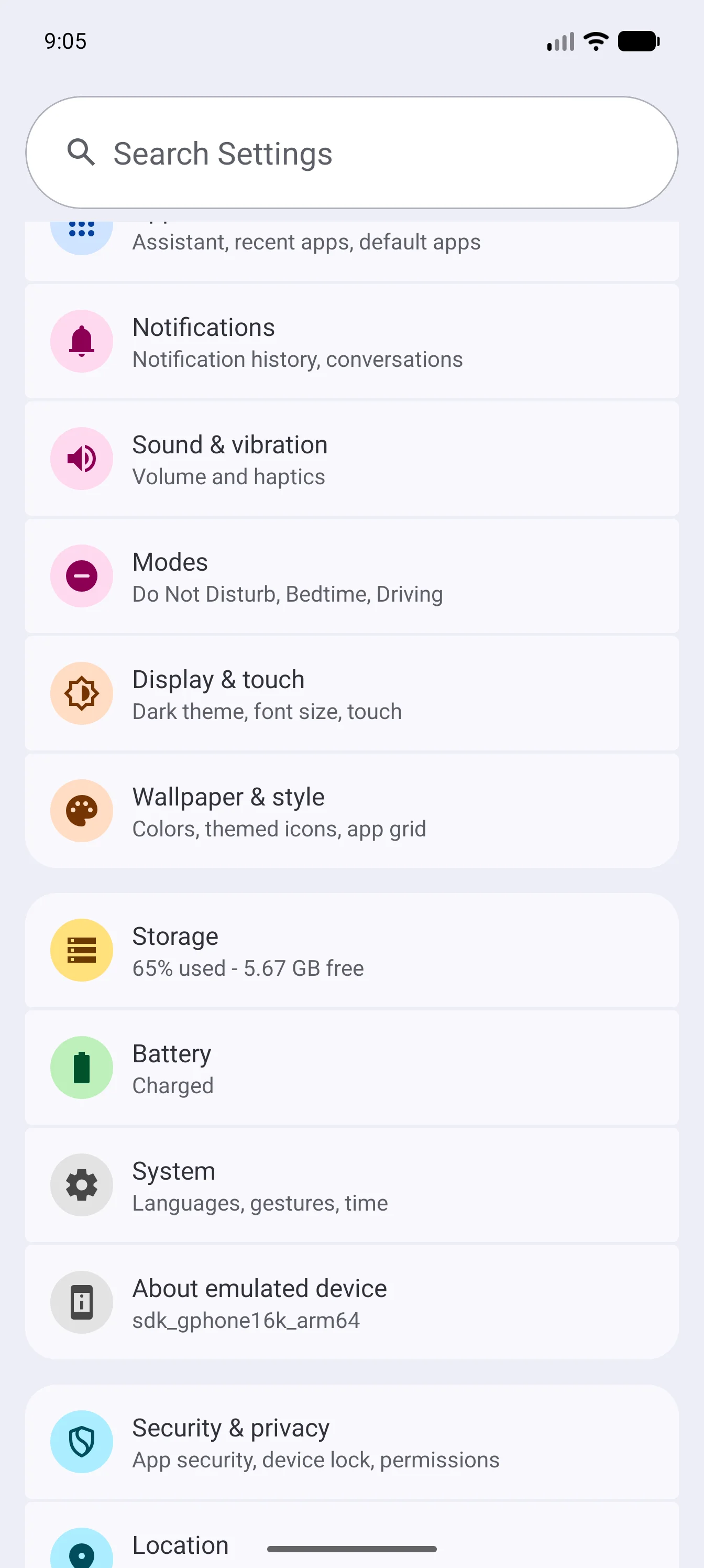
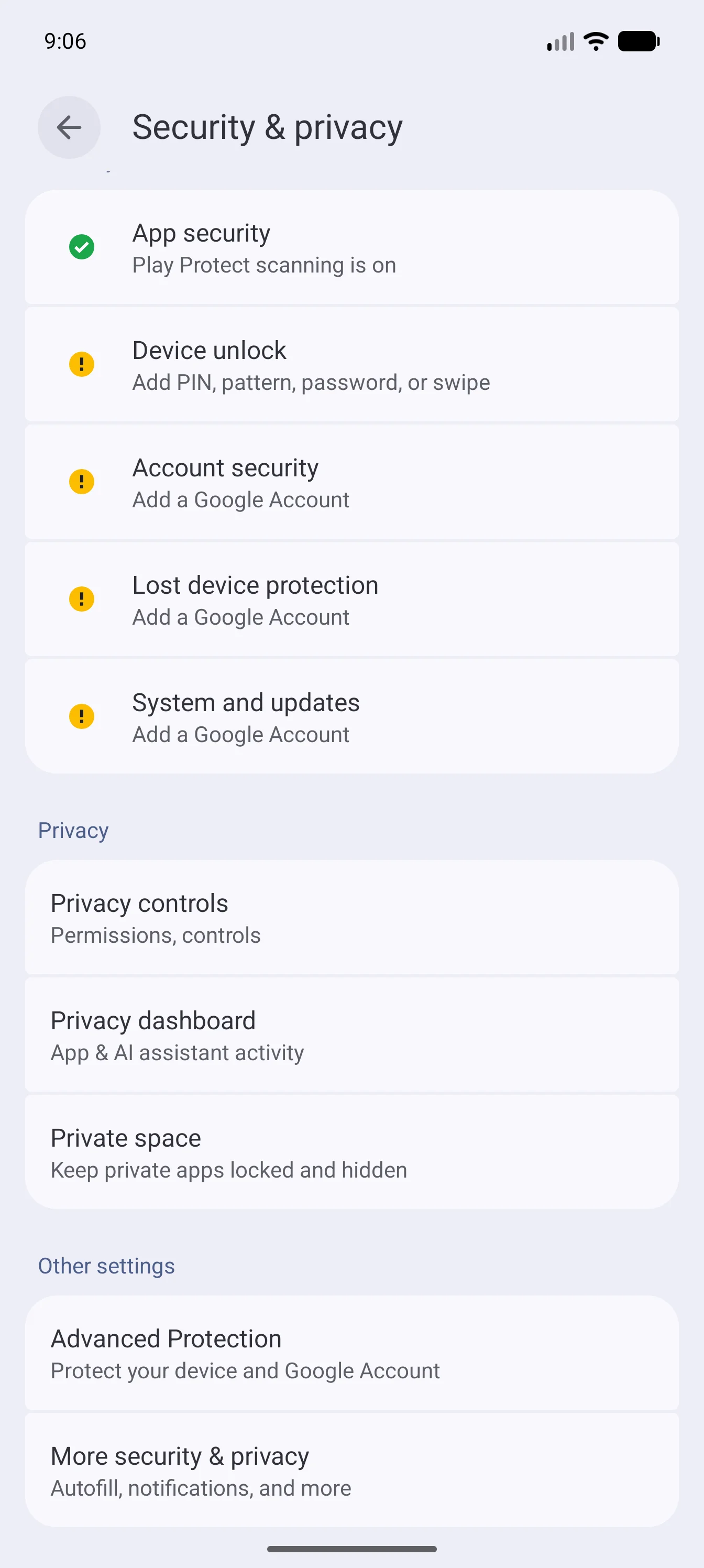
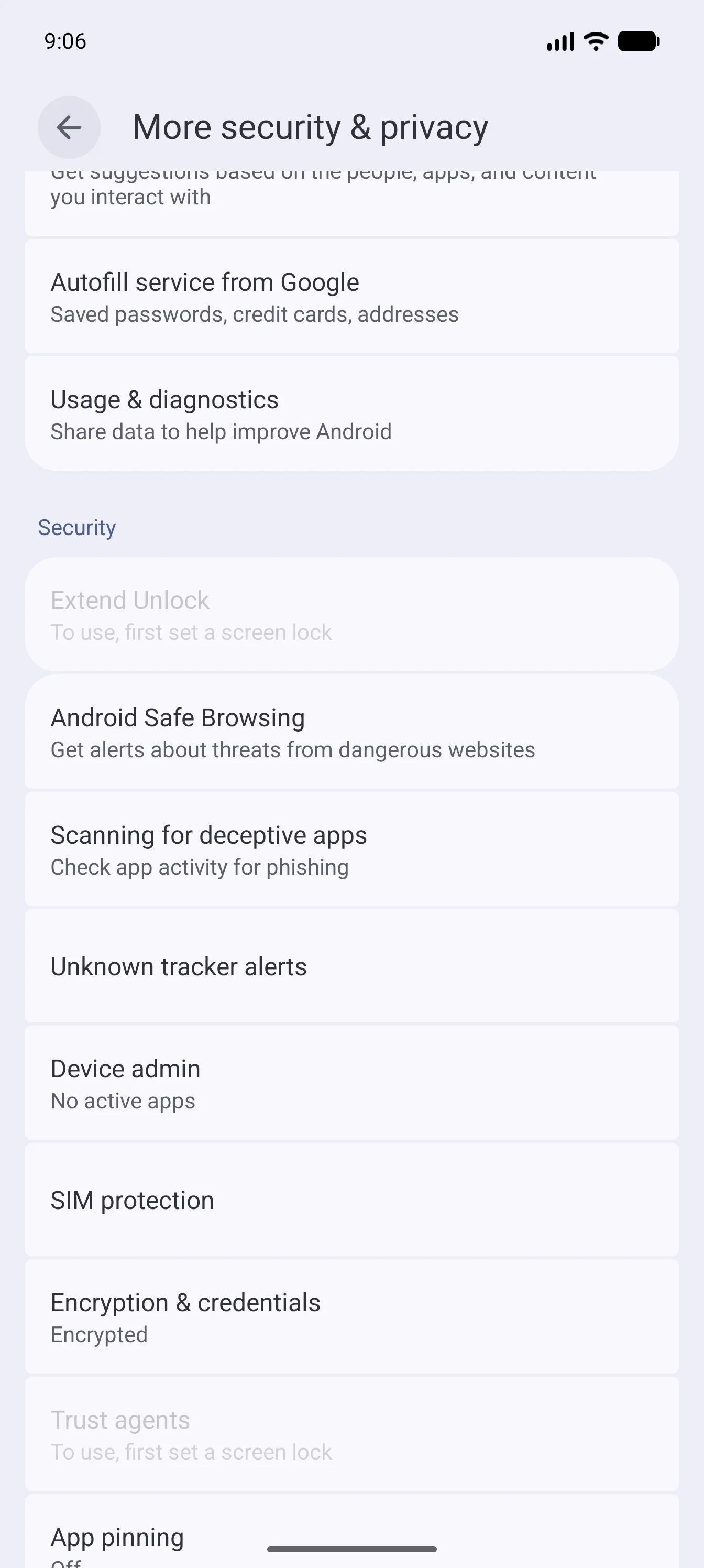
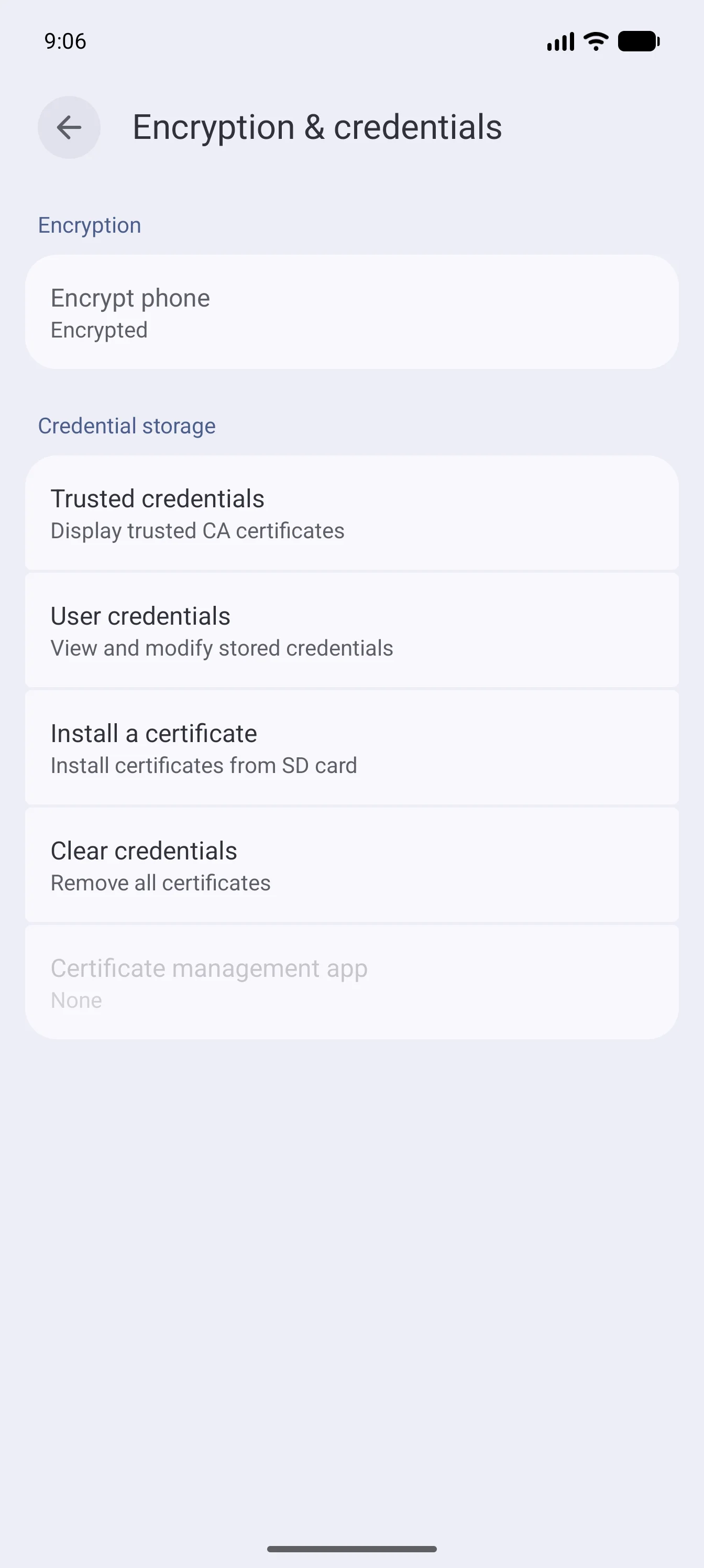
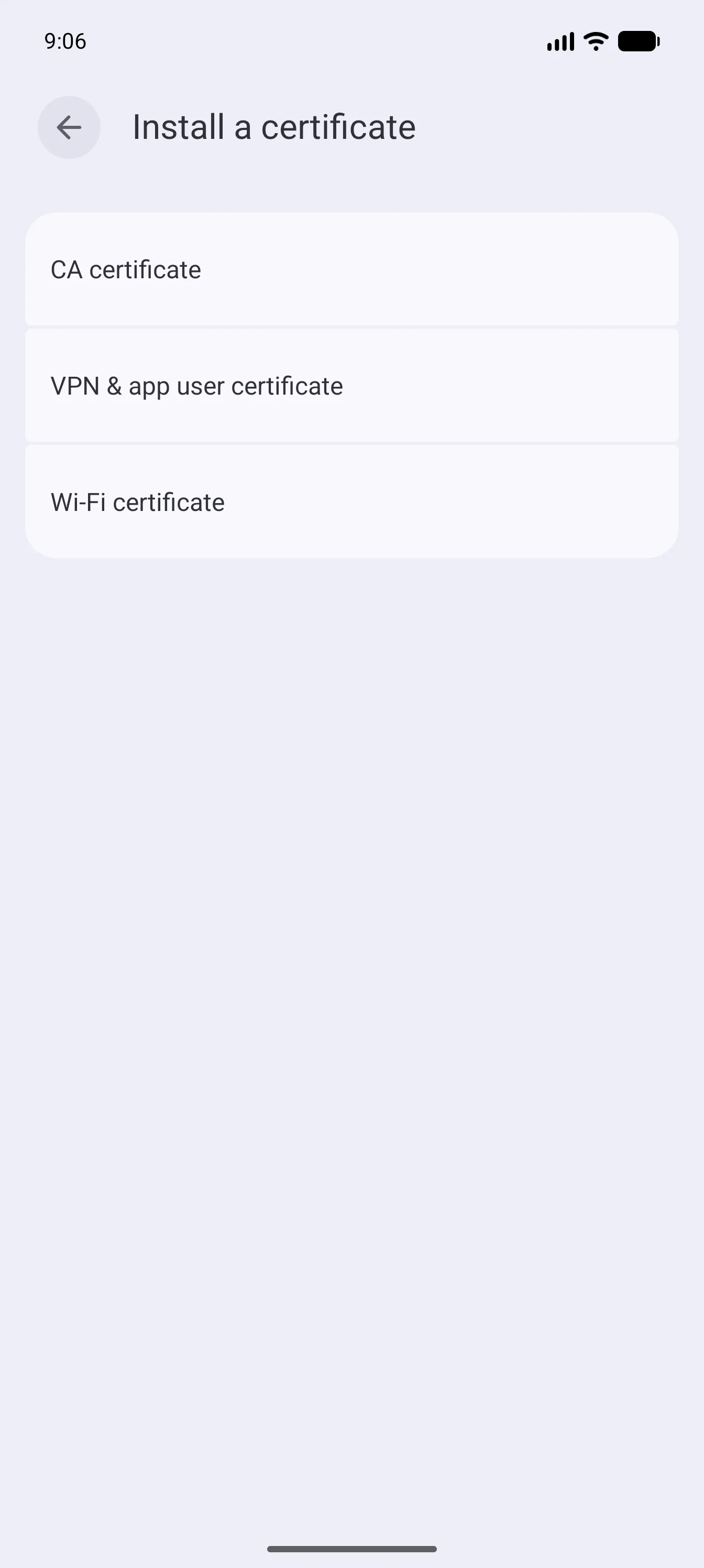
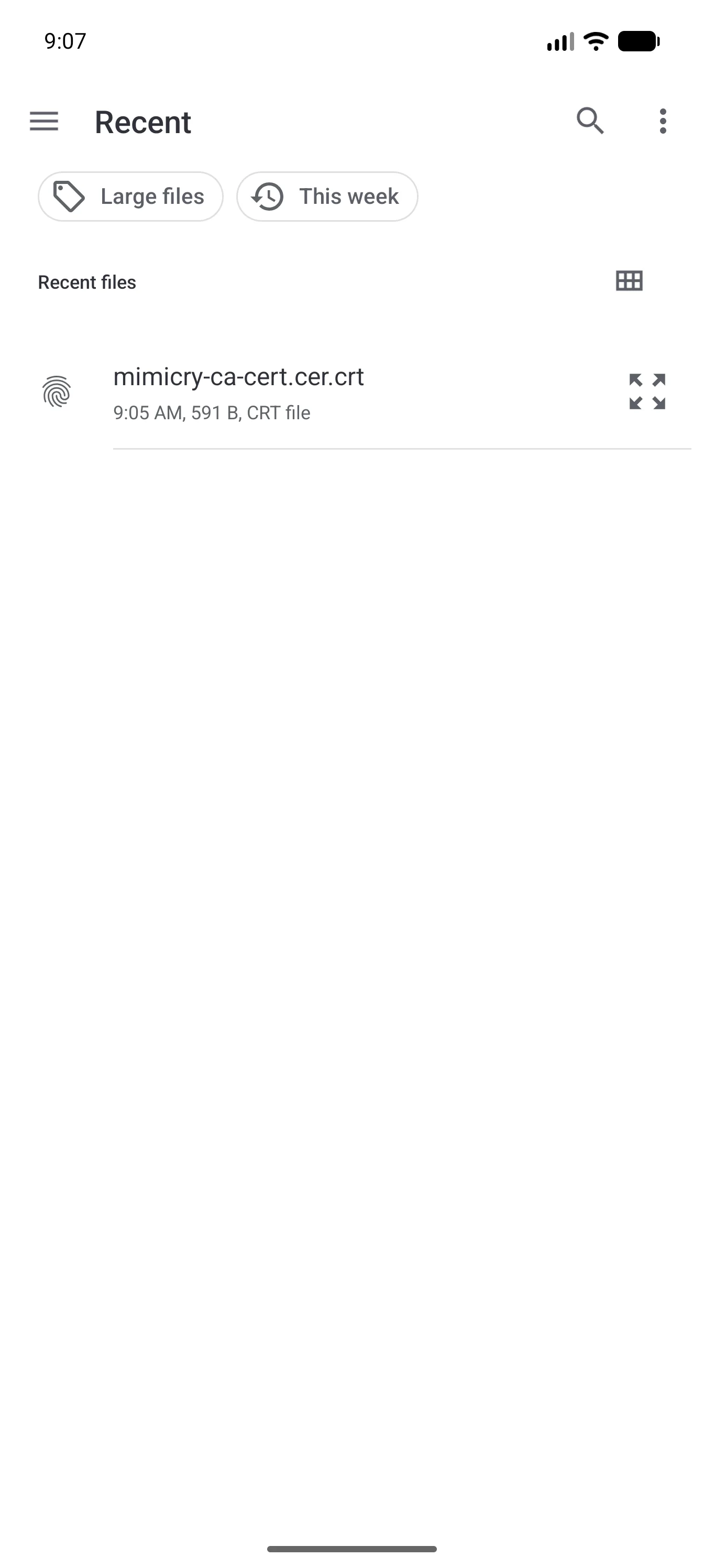
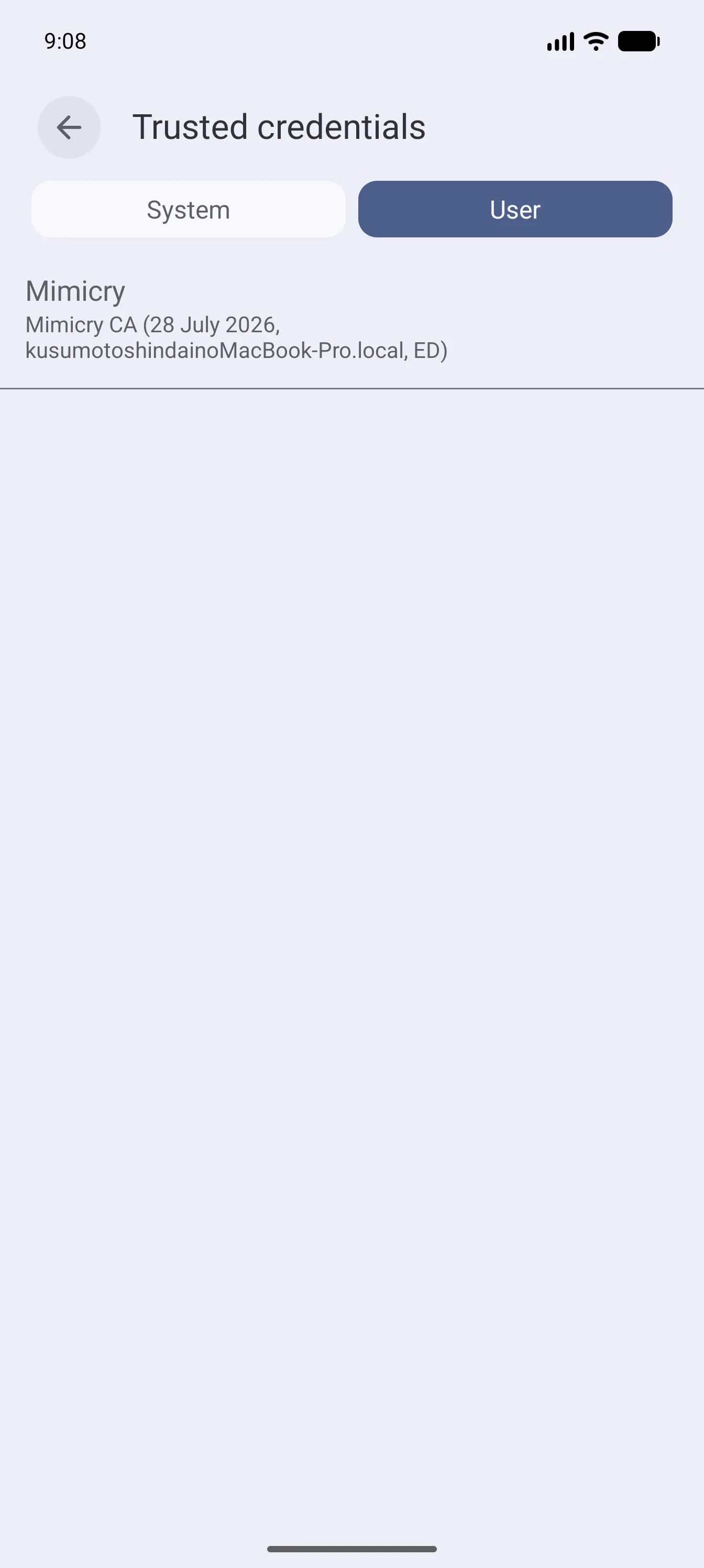
Settings > Security & privacy > More security & privacy > Encryption & credentials > Install a certificate > CA certificate
Setup complete: Traffic from your physical Android device is now captured by Mimicry. When you make network requests in a browser or an app, they appear in the traffic log.
Note: The layout of the settings screens varies by Android manufacturer and version. Search for terms like "certificate" or "CA certificate" to find the relevant setting.
Web browser
Traffic from browsers such as Chrome and Safari is captured through the macOS system proxy.
Select Web Browser in Device Setup, then install and trust the certificate. Enter your password if prompted. The certificate is set to "Always Trust".
Enable the system proxy.
Open a site in the browser. Its traffic appears in the traffic log.
Scope: The certificate is installed in this Mac's login keychain, so every app on this Mac that trusts the keychain is affected. The system proxy is also Mac-wide, and it is restored when you quit Mimicry.
Troubleshooting
Nothing appears in the traffic log
- Check that the certificate is installed correctly
- Check that the proxy server is running
- For a physical iOS device, check that the certificate trust setting is enabled
Certificate installation fails (Android)
- The system certificate store works only on Google APIs (no Play Store) images. On any other image, choose the user certificate store
- If you used the user certificate store, check that the app trusts user certificates in network_security_config.xml
- Check that the Android SDK Path is set correctly
- Try restarting the emulator
HTTPS requests fail
- Try reinstalling the certificate (Reinstall Certificate)
- If the app uses Certificate Pinning, Mimicry cannot intercept it