Mock Rules
Basic concepts
In Mimicry, mock rules are organized in a hierarchy.
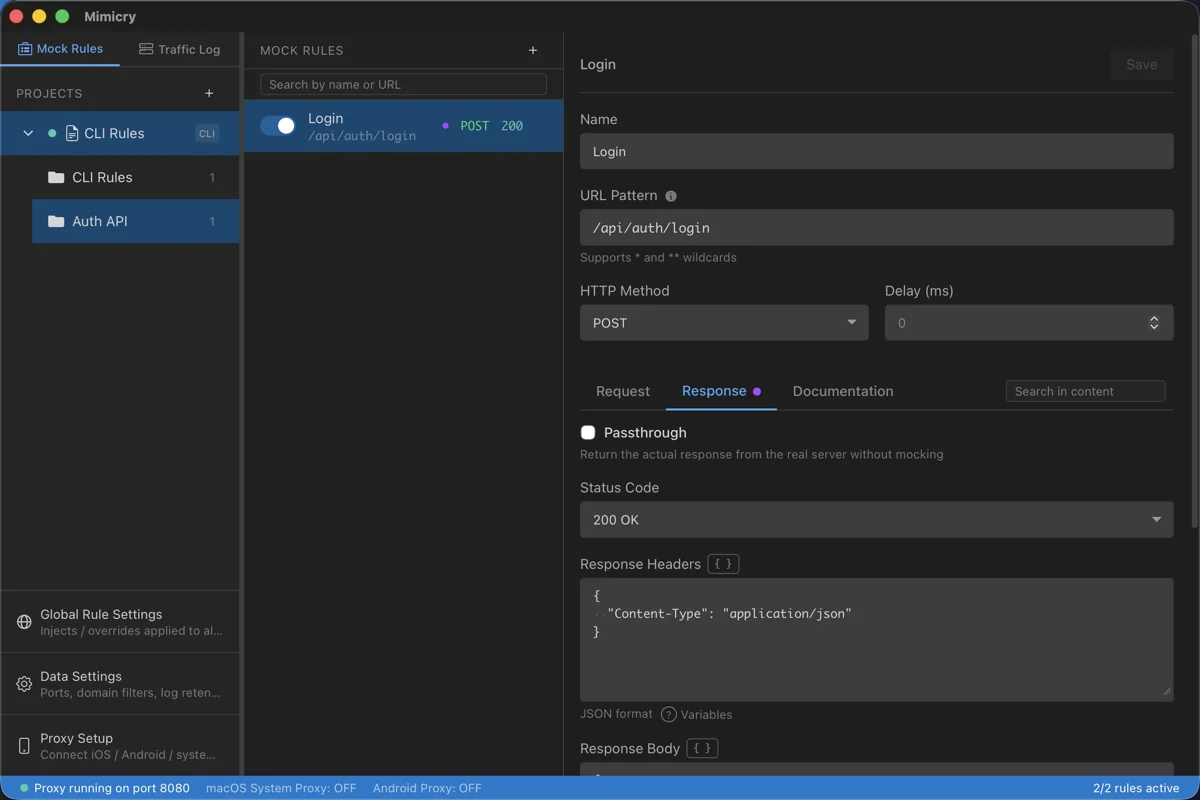
Each rule can be toggled on or off; a disabled rule is no longer applied.
Creating a rule
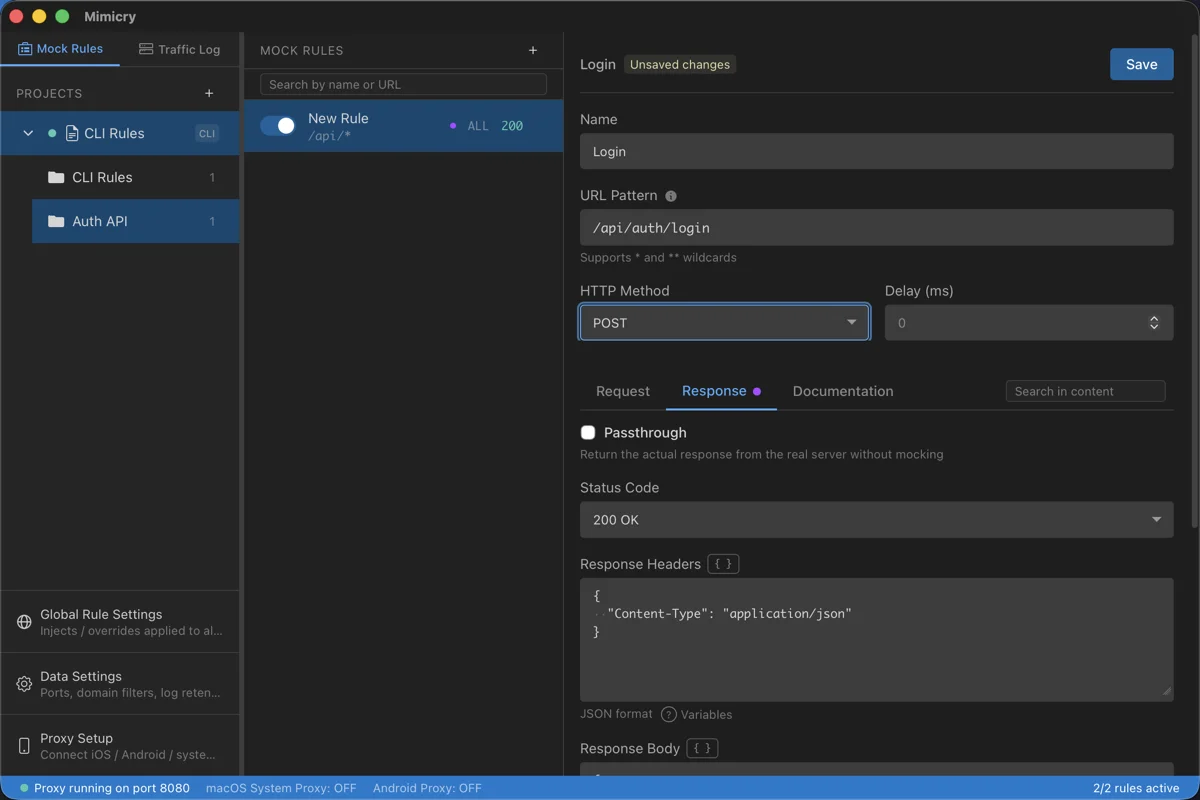
Select the folder to add the rule to in the left sidebar.
Set the URL pattern, HTTP method, and response.
Click the Save button to save the rule.
Make sure the rule is enabled (toggle switch).
Settings
URL pattern
Specify a pattern that matches the request URL. You can use wildcards (* and **).
# Exact match
https://api.example.com/users

# Single-segment wildcard
https://api.example.com/users/*

# Multi-segment wildcard
https://api.example.com/**

# Match by path only, on any host
/api/users/**

# Domain wildcard
https://*.example.com/api/*- A pattern starting with
http://orhttps://is matched against the whole URL, host included. A pattern starting with/is matched against the path (and query) only, on any host. *does not cross/. Use**to match across multiple segments.- The whole path has to match; it is not a prefix match.
/api/users/*matches/api/users/42but not/api/users/42/posts. - A trailing slash is significant:
/api/usersand/api/users/are different paths. - Case is ignored for ASCII characters only.
- The query is checked only when the pattern has one, and then as a subset: the parameters you wrote must be present in the request. A pattern without a query ignores the request's query.
HTTP method
Specify the HTTP method to match.
Selecting "All methods" matches every HTTP method.
Status code
Specify the status code of the response. Common codes are available as presets, and selecting "Custom" at the end of the list lets you enter any code from 100 to 599 directly.
Response headers
Specify the response headers in JSON format.
{
  "Content-Type": "application/json",
  "Cache-Control": "no-cache"
}
Response body
Set the response body. You can specify it in any format, such as JSON, text, or HTML.
{
  "id": 1,
  "name": "John Doe",
  "email": "john@example.com"
}
Delay (milliseconds)
Specify the delay in milliseconds before the response is returned. Use it to test network latency and timeout handling.
Projects and folders
Creating projects and folders
You can create a project or folder from the + button at the top of the left sidebar.
Duplicating a rule
Duplicate an existing rule to create similar rules efficiently.
- Right-click the rule you want to duplicate
- Select "Duplicate"
- A rule with the same settings is created
This is handy when creating multiple rules with similar URL patterns or responses.
Drag & drop
You can reorder rules and folders by drag and drop. You can also move rules between multiple projects.
Enabling and disabling
Each rule has an enable/disable toggle switch. A disabled rule does not match requests.
Rule priority
When multiple rules match, the rule higher in the list takes precedence.
Hint: We recommend placing more specific rules (such as exact matches) higher and general rules (wildcards) lower.
A project the CLI wrote to with --project is matched ahead of the other projects, wherever it sits in the sidebar (pinned). You can unpin it from the PIN badge or the right-click menu in the sidebar.
Temporary rules
Add --ttl to the CLI's rule set and the rule is deleted automatically once the time has passed. Add --times and it is deleted after being applied N times. You can see how many times it has been applied in ruleUse of mimicry logs --json. The GUI sidebar shows a "Temp · … left" badge, and "Keep permanently" keeps the rule.