Time Travel
What is Time Travel?
Mimicry's Time Travel feature packages API traffic, screen recordings, and device information into a single .mimicry file.
A recorded file can be shared, and whoever receives it can inspect the same traffic, screen, and device information. The replay viewer shows the screen and traffic log in sync, and the CLI can mutate or trim a recording and export its video.
Unlike the HAR export in Charles or Proxyman, it keeps traffic data, the screen recording, and device information in a single file, and the viewer shows the screen and traffic in sync.
Recording
Start recording with the record button on the traffic log screen.
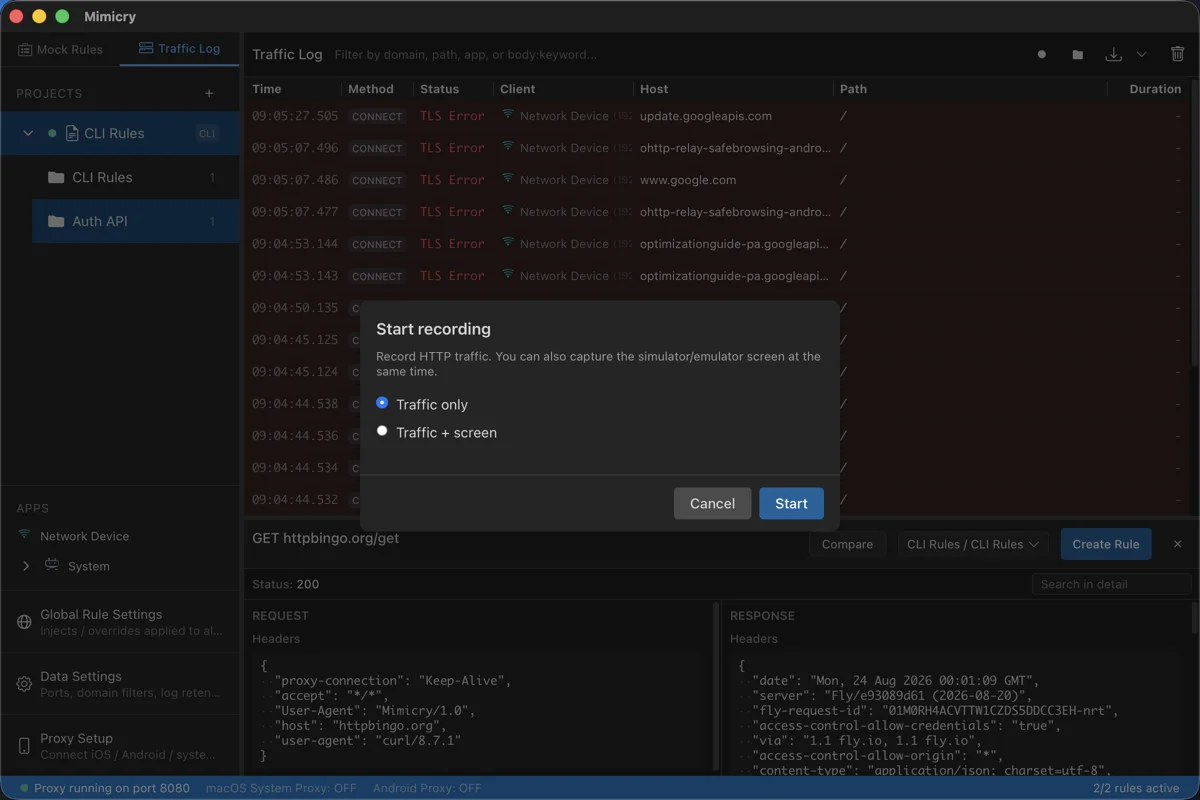
Recording modes
Traffic only
Records only HTTP/HTTPS traffic data.
Traffic + screen recording
In addition to the traffic data, records the device screen as a video at the same time.
Devices supporting screen recording
| Device | Support |
|---|---|
| iPhone (physical device) | Supported (via the Mimicry Capture app) |
| iOS Simulator | Supported |
| Android (physical device) | Supported |
| Android Emulator | Supported |
Recording flow
All traffic is recorded while recording is active. A recording indicator appears in the status bar.

The GUI's recording start dialog has no traffic filter. To narrow by domain, use the CLI's mimicry recording start --domain.
When you stop, it is saved as a .mimicry file.
Limits: A recording is built from the traffic log when you stop it. Like the log, it holds at most the newest 1000 entries, and older traffic is not in it. Response bodies over 10 MiB are left out of the recording.
.mimicry file
Recordings are saved in the .mimicry format. Everything needed to reproduce an issue is packaged into a single file.
API traffic
All request and response data (URL, method, headers, body, status code)
Screen recording
A video of the device screen (mp4), synchronized with the traffic by timestamp.
Device information
Device type (physical device / simulator), model name, OS version
Difference from HAR: HAR is a text-based traffic log. A .mimicry file holds the screen recording and device information as well as the traffic in a single file, and the viewer shows the screen and traffic in sync.
Recording library
Saved recordings are listed in the recording library. For each one you can see the entry count, file size, and traffic log.
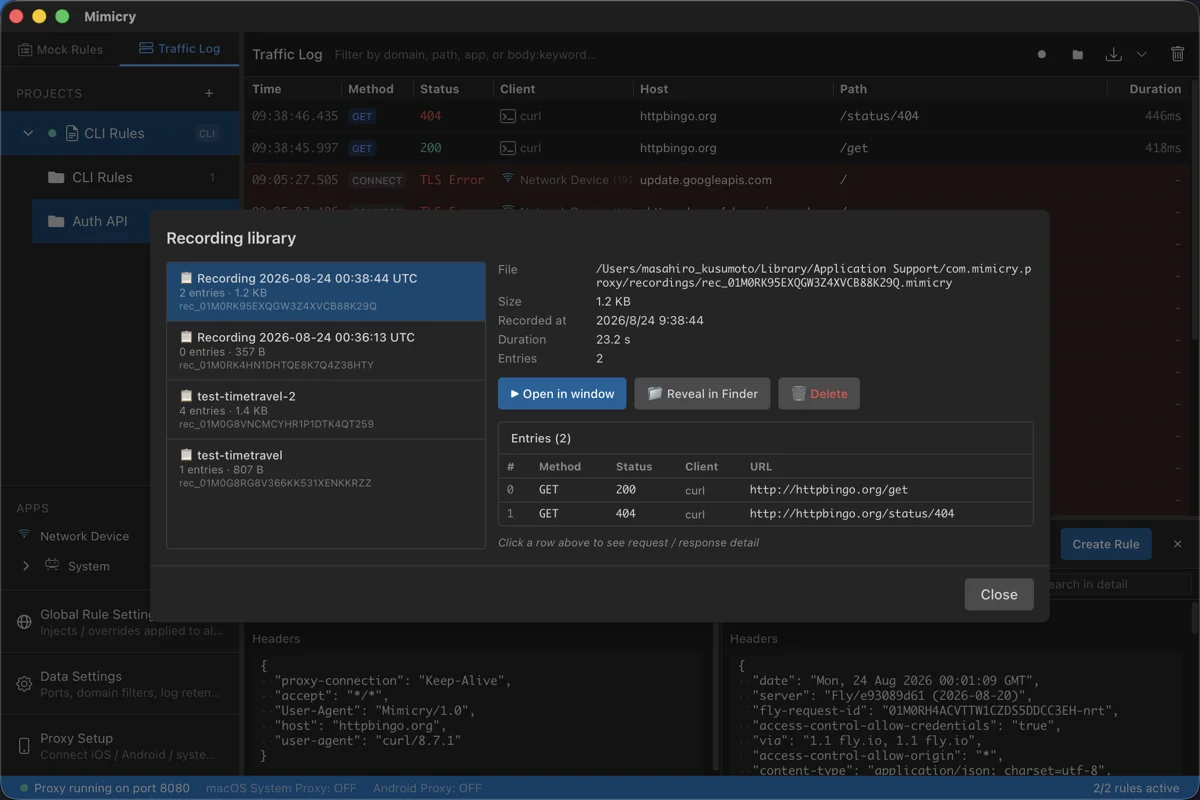
Replay viewer
A dedicated window for viewing the recorded screen and traffic log in sync.
Split view
Displays the video player and the entry list split vertically or horizontally.
Timeline bar
Visualizes when each request occurred on a timeline.
Playback speed
Choose from 0.5x / 1x / 1.5x / 2x playback speeds.
Export, share, and trim
The viewer header lets you export to HAR / .mimicry / mp4, share, and trim the head and tail. The mp4 option is available only when the recording has a screen capture. A trim in the viewer cannot be undone.
Editing and exporting recordings
Besides exporting and trimming in the viewer, you can edit recordings with the mimicry recording CLI command.
mutate
Modifies the contents of a recording.
trim
Cuts the head and tail off a recording. The pre-trim contents are kept as .mimicry.bak (one generation). If no entry would remain in the range, it is refused unless you add --allow-empty.
export-video
Exports the screen recording as a video file.
Sharing
Just hand over a .mimicry file to share everything needed to reproduce an issue.
How to share
AirDrop
Slack
Git
What the recipient does
Double-click the .mimicry file, or drag and drop it onto Mimicry
Check how the issue looked by viewing the screen recording and API traffic in sync in the replay viewer
Key point: The recording holds the traffic and screen from the moment it was made, so you can look back at what happened even after the server state has changed.
Use cases
Sharing bug reproductions
Eliminates "it doesn't reproduce on my machine." Because the traffic, screen, and device information from when the issue occurred are all packaged together, the developer who receives it can inspect the same traffic and screen even after the server state has changed.
QA records when the issue occurs
.mimicry file attached to the ticket
Developer opens the file, checks the traffic and screen, and fixes it
Streamlining code review
View the screen and traffic in sync to verify behavior. Reviewers can quickly grasp the actual behavior.