Sources
AppForceps supports six kinds of data sources: the iOS Simulator, .xcappdata packages, local reference folders, physical iOS devices, iOS device backups, and Android devices. All of them open in the same four-pane UI.
iOS Simulator
Lists the running simulators and edits an app's Data Container directly.
- When writing a plist, the cfprefsd cache is synchronized automatically (
simctl spawn defaults import), so your edits take effect without restarting the app. - The "Restart App" button lets you verify your edits in the running app right away.
.xcappdata
Opens .xcappdata packages extracted from a real device with Xcode or Device Hub and edits them in place. This is the primary route when working with real-device data.
Local reference folders
Register any directory as a reference folder to open the .xcappdata packages and Data Containers under it directly. This is handy for keeping extracted data organized per project.
Physical device (iOS)
Lists connected physical devices via xcrun devicectl.
- You can restart cfprefsd to drop the UserDefaults cache.
- To edit a container, extract it as .xcappdata first and edit that.
iOS device backups
Opens an unencrypted local backup of a physical device created by Finder (or the legacy iTunes format), at ~/Library/Application Support/MobileSync/Backup/.
- Scanned automatically at launch and listed as a source.
- Reading its contents requires macOS Full Disk Access (FDA) permission.
- Read-only — it is never a target for writes or undo.
- You pick an app (domain) to expand before opening its contents; domains that haven't been expanded are excluded from cross-source search.
Android
Lists connected devices and debuggable packages via adb.
- The data directory (
shared_prefs/databases/files) is pulled for local editing, and Upload writes it back to the device explicitly. - Launching apps and cross-source search also work with Android.
Shared screen layout
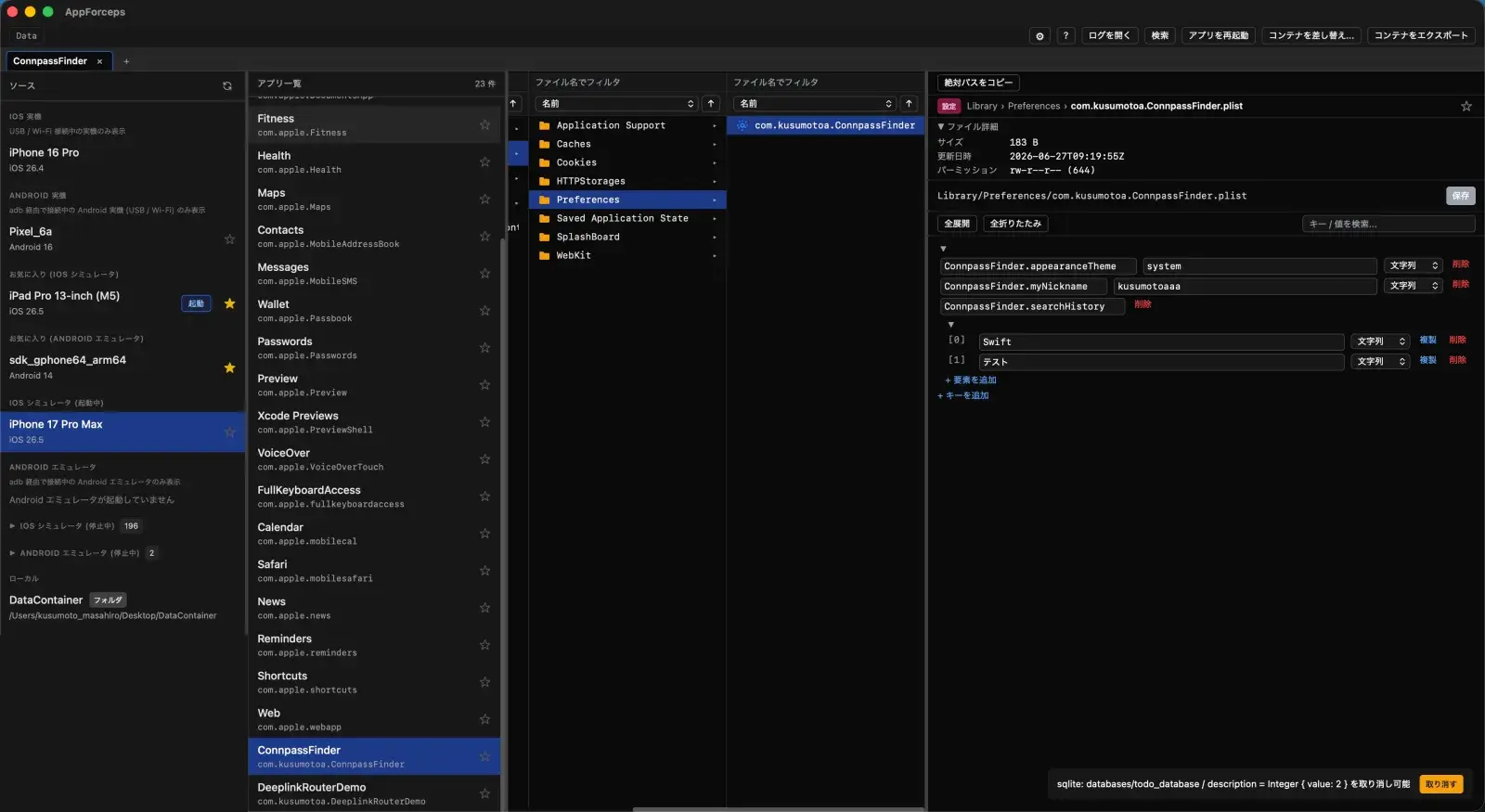
Every source is operated through the same screen layout.
- A Finder-like four-pane column view (Devices → Apps → Files → Editor). Navigate with the arrow keys and resize the pane widths.
- Multiple tabs are supported (Cmd+T / Cmd+W, drag-and-drop reordering, renaming).
- Multiple windows are supported (Cmd+N).
Session restore: Even if the app is force-quit, the next launch restores the tab layout and even the selected file.